Back Office › Employees › Scheduling › Time Sheet is where punches become payroll-ready hours: review them, correct them and export them, for the whole store.
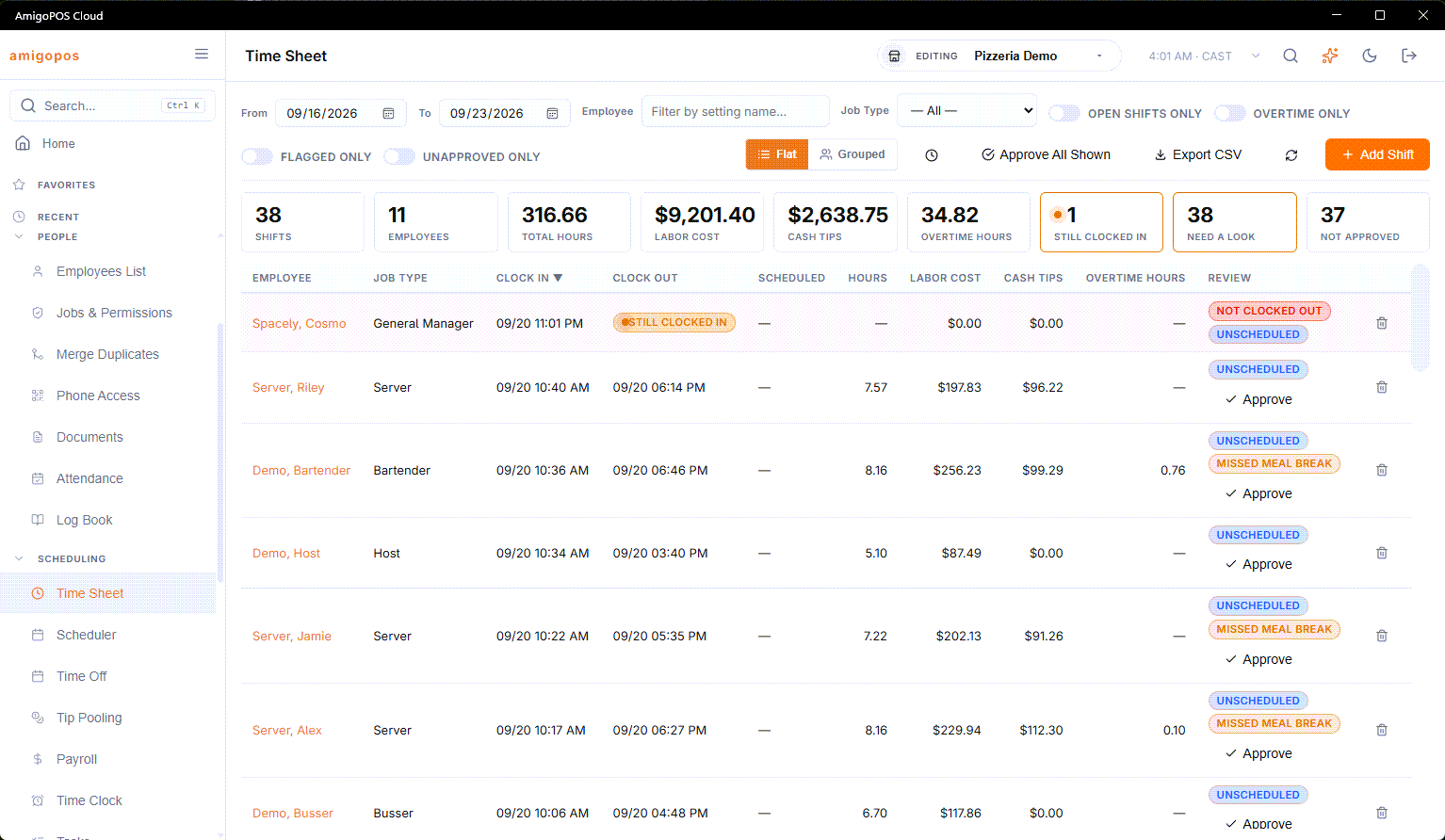
Choosing what to see
- From and To — the last seven days when the page opens.
- Employee — Filter By Name... narrows the list to matching names. Opened from Payroll, the page shows that one employee instead, with an × to show everyone, and a Payroll button that takes you back to the same period.
- Job Type — one job, or all.
- Still Clocked In Only — only punches still clocked in: the forgotten clock-outs.
- Overtime only — only punches with overtime hours.
- Flat or Grouped — every punch as a row, or grouped by employee with their totals.
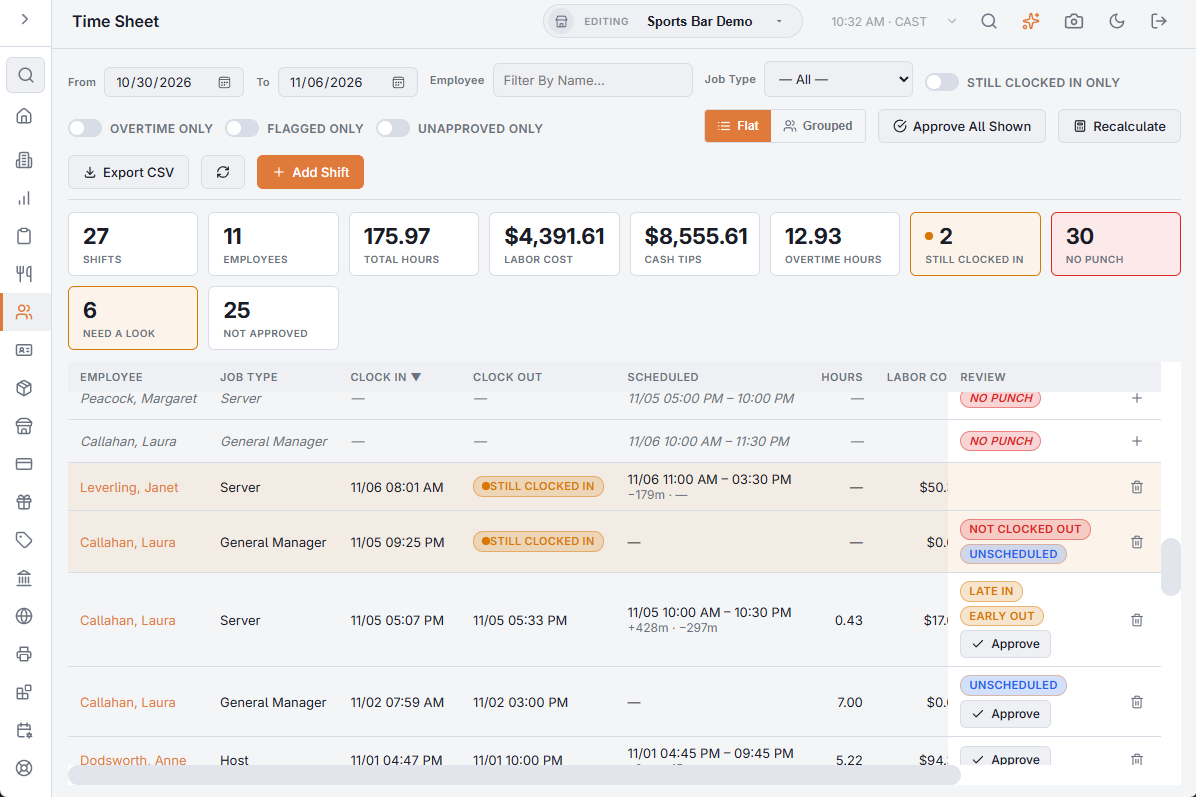
Managers also see Flagged Only and Unapproved Only, the review columns and the approval buttons; see Reviewing and approving punches.
The summary and the breakdown
The strip above the list counts the shifts and employees, and totals the hours, labor cost, cash tips and overtime hours for what is shown. It also counts punches still clocked in and, for managers, published shifts with no punch, punches over 12 hours, punches that need a look and punches not approved.
Under the list, Breakdown totals the same punches By Employee, By Job Type and Hours by Day.
Correcting punches
Click a punch to edit it: the job, the clock-in and clock-out times, Clocked out, the pay rate and the cash and non-cash tips. Add Shift adds a punch that never happened at the clock, in the same form with an employee picker; the bin button deletes a punch, after asking. Clicking an employee’s name opens their profile.
Corrections are what make the labor numbers trustworthy: close punches still clocked in and fix obvious errors before reading the labor reports or running payroll.
Pay rate and labor cost
Every punch carries the hourly rate it is paid at. It is taken when the employee clocks in — at the register or on the phone — from their pay for that job on the employee’s Jobs & Pay tab, or from the job’s Default hourly rate when their own rate is 0. Labor cost and overtime are worked out when the punch is clocked out, or saved here, from that rate and the store’s overtime settings; there are no overtime fields to fill in.
In the editor, leave Pay Rate empty — it shows Employee’s Job Rate — and the rate is taken the same way when you save. Type a rate only for a one-off exception. Changing the employee or the job empties it again, so the new rate is used.
A finished punch that was saved without a rate, or whose overtime or labor cost does not add up, is recalculated the next time Time Sheet or Payroll shows it, unless it sits in a locked pay period.
Recalculate
Managers have Recalculate in the toolbar. After asking, it works out the overtime hours and labor cost of every closed punch from From to To again, with the current Time Clock settings — for after the overtime settings change. Rates and approvals are kept, and punches in a locked pay period are skipped; the page says how many punches changed.
Overtime
The thresholds and multipliers are on Back Office › Employees › Scheduling › Time Clock: two weekly tiers, Overtime Hours 1 and Overtime Hours 2, each with its rate — for example 1.5× past 40 hours and 2× past 60 — and optional daily overtime; see Time Clock settings. Computed overtime shows per punch and in the totals.
Export
Export CSV downloads the punches in the dates shown: one row per punch with the employee, job, clock-in and clock-out, hours, labor cost, cash and non-cash tips and the two overtime tiers, followed by the review columns described in Reviewing and approving punches. Times are the store’s local time, as everywhere on this page. For the payroll service’s own file, use the Payroll page; see Payroll period report and exports.
Locked pay periods
Once a period has been paid it can be locked, and finished punches inside it become read-only. A banner appears while the dates you are looking at touch a locked period, and clicking one of those punches says so instead of opening the editor. Corrections then start with an unlock on the Payroll page; see Locking a pay period.
Who was late
Time Sheet answers “how many hours”. For “who keeps arriving late”, use Attendance history (late and no-shows), which compares the same punches with the schedule.