A call-center order is taken at one place and cooked at another. The sequence matters, because everything after the store choice depends on it.
In one picture, from the ring to the store, with the branches along the way. The part after Submit — the four ways to send and when the store gets the order — is drawn in How a call-center order travels.
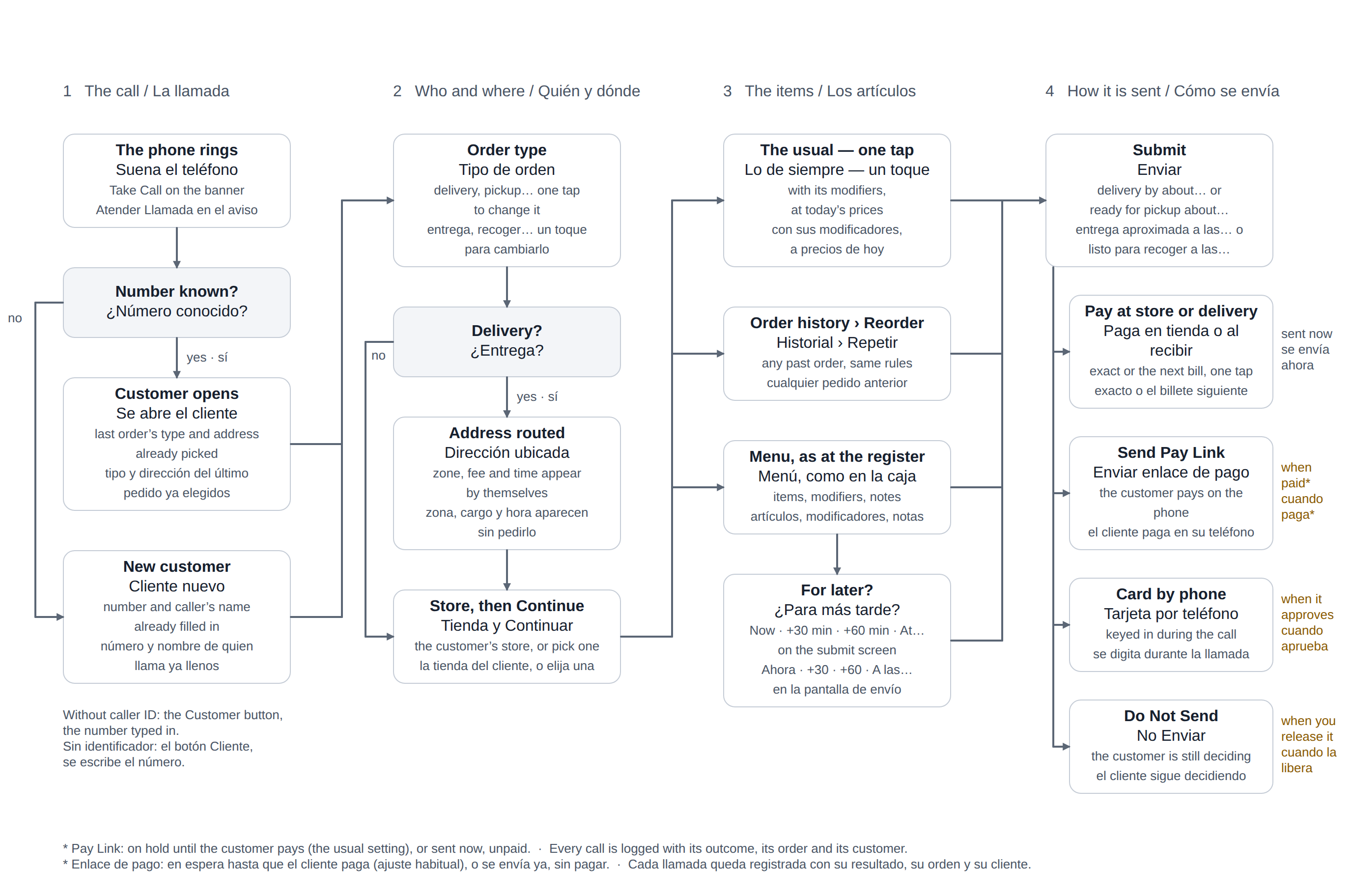
- Find the customer. Look them up by phone number; an existing customer brings their address and order history with them. A new caller is created here.
- Choose the store. For delivery this follows from the address and its delivery zone. For collection it is whichever store the caller wants.
- Build the order against that store’s menu and prices. This is why the store comes before the items — stores do not necessarily sell the same things at the same prices.
- Submit it to the store. See Submitting and routing an order to a store.
With caller ID
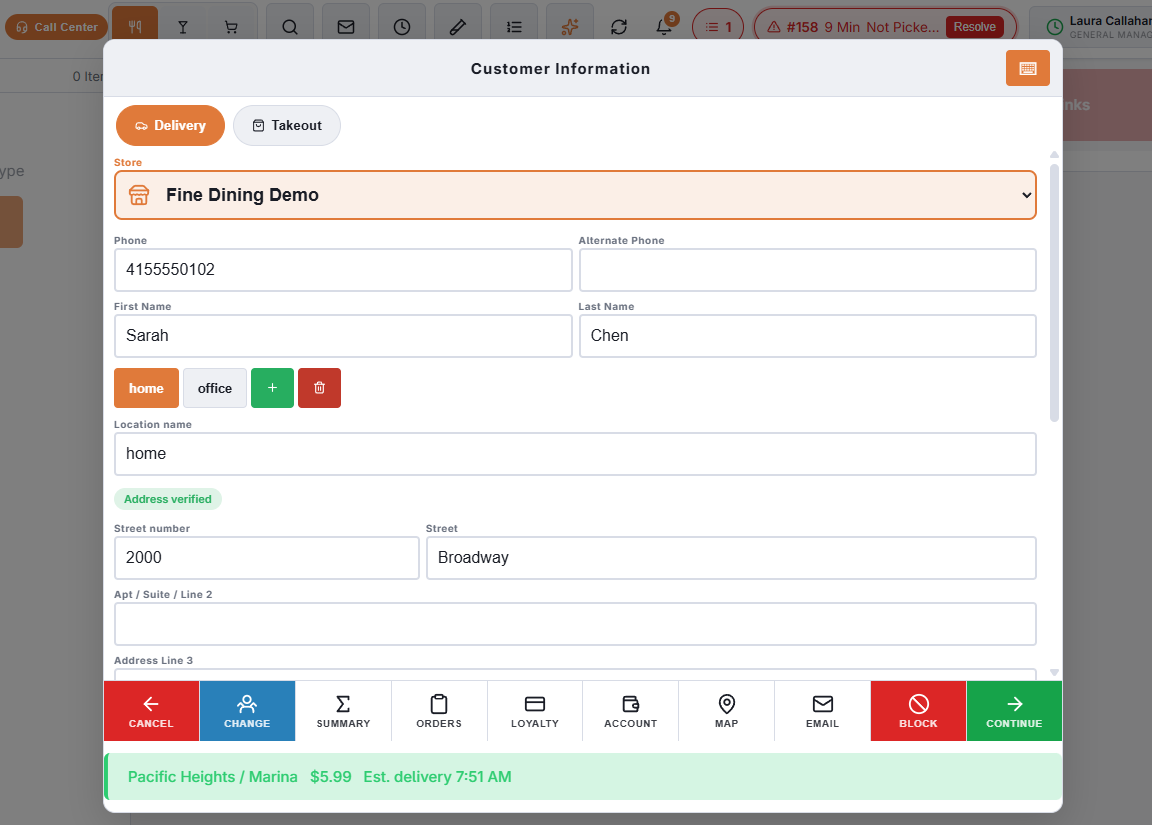
When caller ID is connected, every call for any store of the business appears as a banner on the call-center stations while the phone rings. Answer, then tap Take Call: the customer lookup opens on the caller’s number, the number is recorded on the call, and the other operators’ banners clear so nobody takes the same caller twice. Choose the store as usual. See Taking a call at the register.
Two operators, one caller
If two stations tap Take Call on the same ringing call, the second is told who took it and nothing opens, so the caller does not end up with two orders. Calling a customer back from Recent Calls is never blocked.
New to the call center? How a call-center order travels shows the whole path in one picture.
Which registers are call center seats
A register is a call center seat because it was set as one in Back Office › Hardware & Printing › Registered Devices — it is not something the register can switch by itself. The store’s plan has to include the call center and have a seat free. See POS station or call center seat.
Less to tap during the call
Most of what used to be typed or chosen is now on the screen when it opens. The pieces, in the order they come up:
A caller you already know
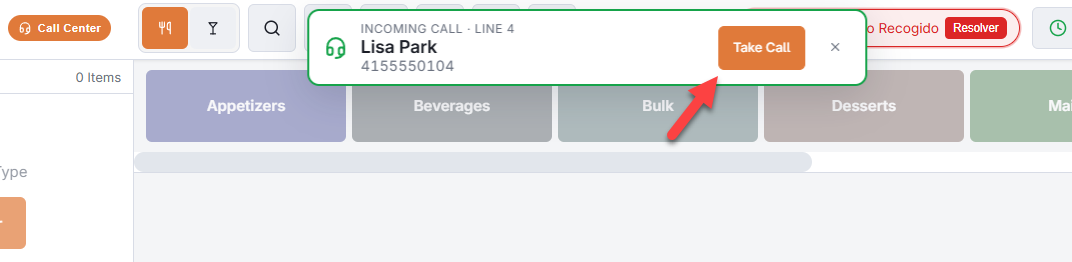
Take Call on the caller ID banner opens the caller’s record straight away: the type of their last order is already chosen, the address of that order is already selected, and for a delivery the zone, the fee and the estimated delivery time are worked out while you are still reading the name back. One Continue starts the order. A strip across the top of the screen shows the order types the call center may use with the chosen one lit — tap another when the caller wants something else, and a delivery address is routed again.
A caller you do not know
An unknown number opens a new customer with the number — and the name the phone company sent, when there is one — already filled in, so you type the address and press Continue. A record created this way that you never confirm (you press Cancel, or Change customer) is removed again: a wrong number or a question leaves nothing behind.
The usual, and Reorder
Order The Usual on the customer screen, and Reorder in the caller’s order history, ring a past order in one tap: the items with their modifiers and item notes, at today’s prices. Anything that cannot be rung again is left out and named in the message, so you can tell the caller — see The usual: one-tap reorder for regulars.
On the submit screen
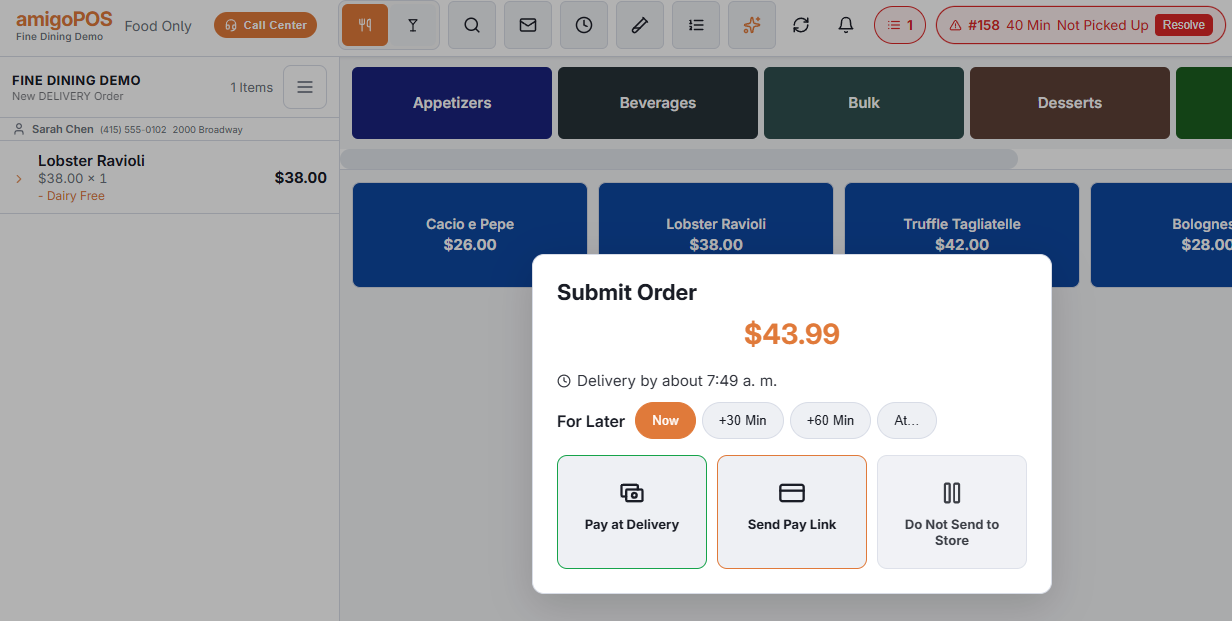
- Under the total: Delivery by about… for a delivery (the store’s quote for that address, including how busy the kitchen is) or Ready for pickup about…, to read out to the caller.
- For Later: Now, +30 Min, +60 Min or At… schedules the order in one tap — the same as Delay Order, and the screen then shows the scheduled time and when the kitchen gets it.
- Pay At Delivery asks what the caller will pay with as chips: Exact Amount, the next bills above the total with the change under each, and Other Amount for anything else. A tap on a chip sends the order.
- Send Pay Link can send the link to the caller’s number the moment you tap it, when the store switches that on — see Sending a pay link.
Every call is recorded with its outcome — an order, or abandoned — the order it produced and the customer it was for.
A caller who once paid a pay link with “keep my card” ticked has one more way to send: Charge their card, on the submit screen — see Sending a pay link. And a seat in an office prints its own copy of each order it sends: The call center’s own hardware.