The bar menu has its own modifiers, set up in Back Office › Menu › Menu Setup › Bar Modifiers and Bar Qualifiers. They are not grouped or assigned item by item: a bar modifier is offered in every bar category or in the ones you choose, and the qualifiers are one short list for the whole bar. Each drink can also have a pour guide, its recipe, which is kept on the register. How the two pages fit with the rest of the menu is in How the menu is organized: food and bar.
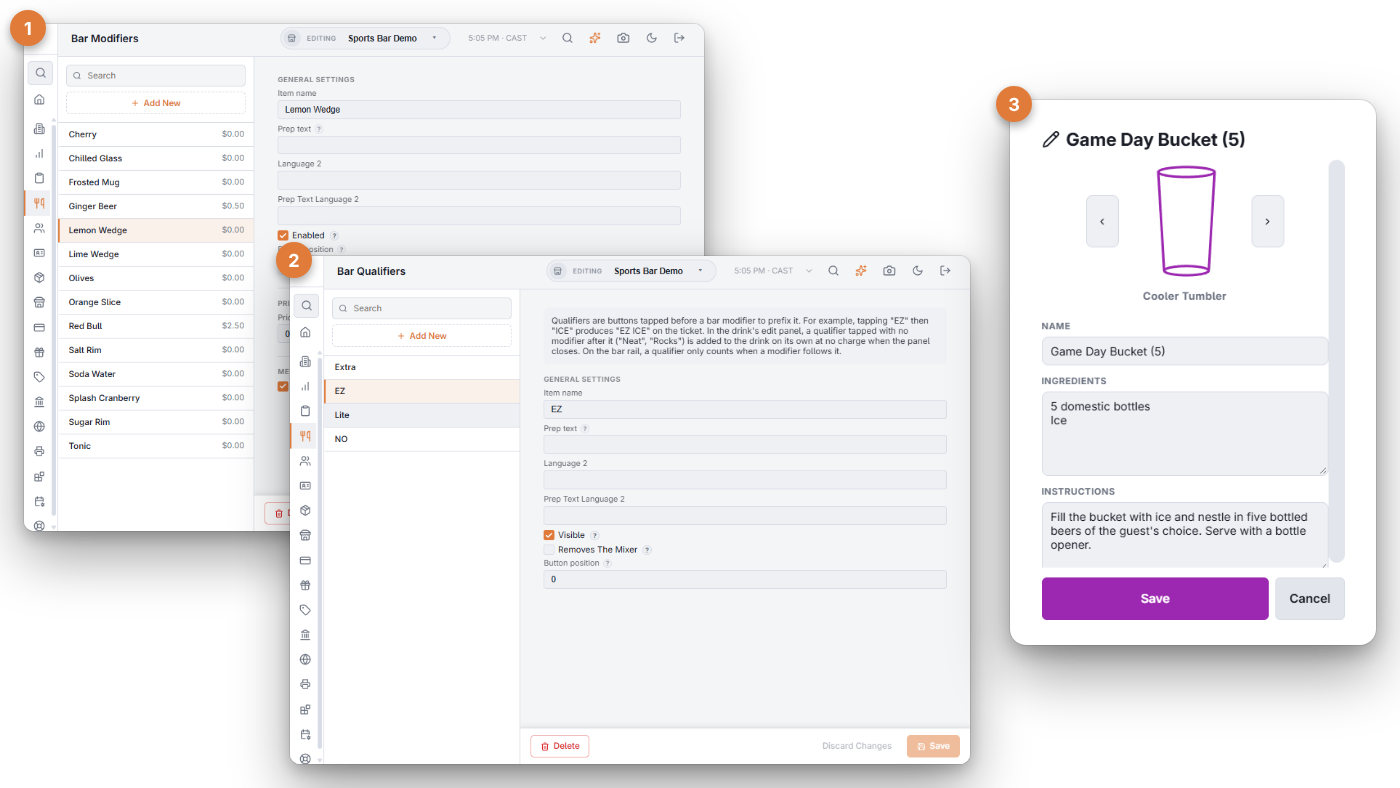
Bar Modifiers
Mixers, garnishes and preparations, such as Soda, Lime or Rocks. The list shows each one with its price; a modifier that is turned off is muted and tagged Off. Search finds one, and Add New starts one.
- Item name — the text on the button.
- Prep text — what the bar ticket and kitchen screens show, when it should differ from the name, such as RB on the button and RED BULL on the ticket.
- Language 2 and Prep Text Language 2 — the second-language versions.
- Enabled — off, the button is not on the register; the modifier is kept.
- Button position — lower numbers come first, unless Order Bar Modifiers Alphabetically is on in Bar Settings.
- Price — added to the drink when the modifier is picked. 0 for free ones such as Ice or No Ice.
- Display For All Menu Categories — on, the modifier is offered in every bar category. Off, tick the bar categories that offer it.
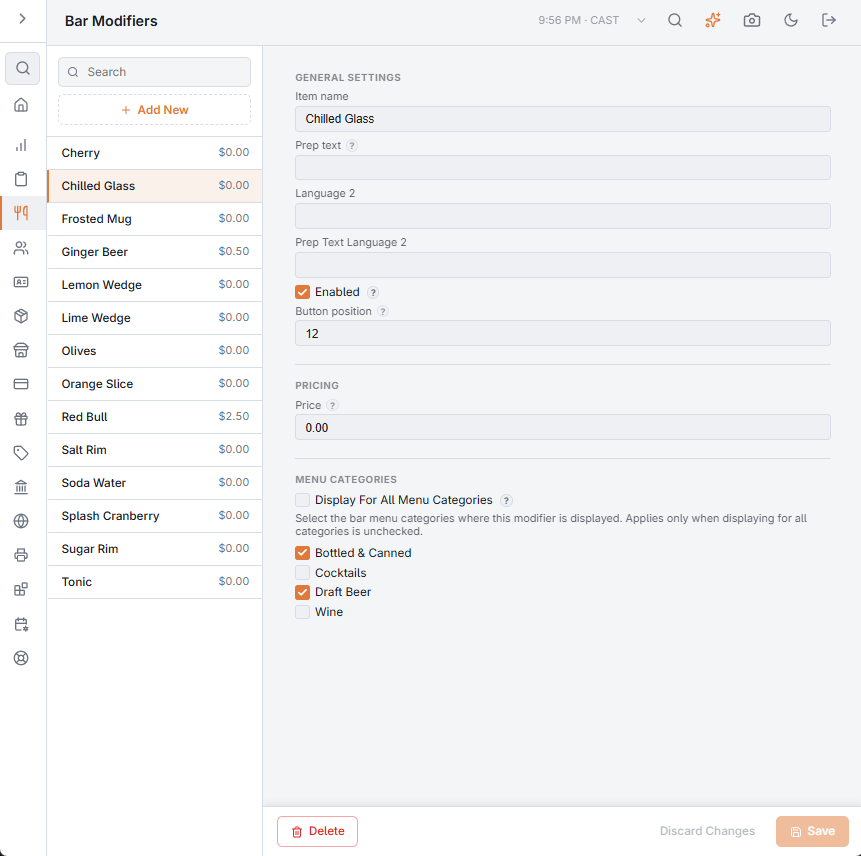
Changes are kept until you choose Save. Delete removes the modifier after you confirm.
Bar Qualifiers
Qualifiers are short words tapped before a bar modifier to change it: tapping EZ and then ICE puts “EZ ICE” on the ticket. A qualifier adds no charge. In the drink’s line-edit panel, a qualifier with no modifier after it (such as Neat or Rocks) is added as its own line at 0.00 when the panel closes, and prints on the check and the bar ticket; tap it again before closing to take it off. On the bar rail, a qualifier is kept only when a modifier follows it. The register shows the qualifiers only in categories that have bar modifiers.
- Item name — the text on the button.
- Prep text — what prints on the ticket, such as “easy” for EZ.
- Language 2 and Prep Text Language 2.
- Visible — cleared, the qualifier is kept but not shown on the register.
- Removes The Mixer — ticked, the bar modifier tapped after this qualifier is left out of the drink and takes no stock (its price still applies), as with “No Red Bull”. Qualifiers named No, None, Without or Sin start ticked; tick it for any other removal word, such as Hold or Skip.
- Button position — its place in the row, unless the bar modifiers are ordered alphabetically.
Pour guides (drink recipes)
A pour guide is a drink’s recipe for the bartender: the glass, the ingredients and the instructions. It is kept on the register, not in Back Office. Tap the drink on the order, then Pour Guide; the button is dimmed when the drink has no guide yet. The guide shows the glass, the ingredients and the instructions, with Print.
- Edit Pour Guide — shown to managers. A drink with no guide yet opens straight in the editor, named after the drink.
- The arrows on each side of the glass pick the glass; its name shows under it.
- Name, Ingredients and Instructions — what the bartender sees. Save keeps it for every order of that drink.
A pour guide is only for reading: it does not take stock. Stock comes from the drink’s recipe in Inventory (see Sizes and stock below).
Where the buttons appear
A bar category with Always Show Bar Modifiers on keeps its qualifiers and modifiers in a row under the item buttons. See Categories (food groups) and, for ringing, Bar modifiers and qualifiers.
Sizes and stock
- Sizes and strengths with their own price, such as Double or Tall, are not qualifiers: they are the category’s upcharges. See Bar menu upcharges (Double, Tall, Premium, Virgin).
- A bar modifier can have its own recipe in Inventory, so a Red Bull takes a can from stock. See How modifiers, levels and pour sizes use stock.