Every button on the register belongs to a category, and every category is one of two kinds: a food category or a bar category. The kind is the category's Menu Type (Regular Menu or Bar Menu), and it decides how the items in it take modifiers. Most of what an item carries, such as its price, its prep stations and its recipe, works the same way on both.
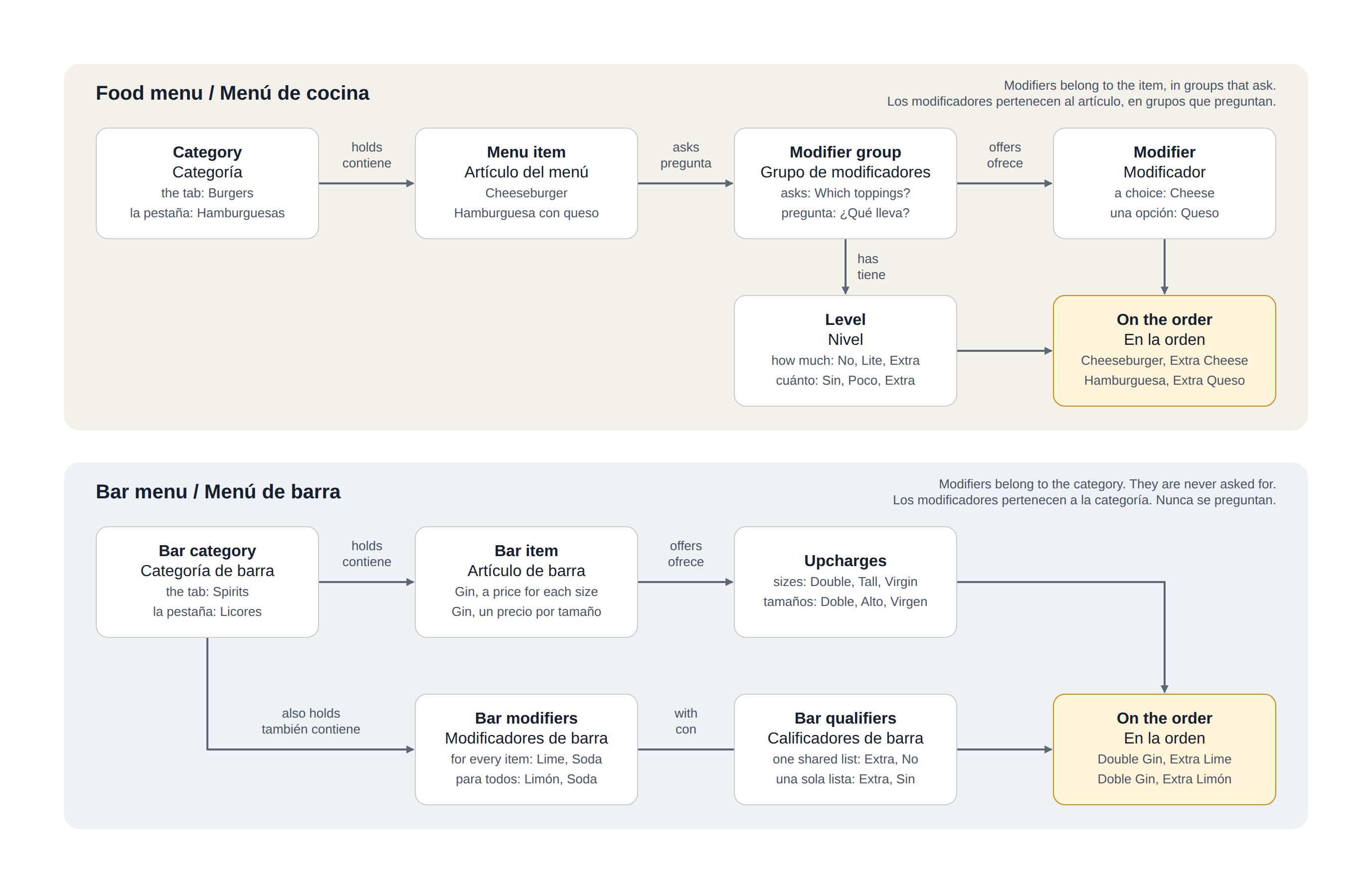
The food menu
On the food menu, modifiers belong to the item.
- Category: the tab on the menu, such as Burgers. What is set on it applies to its items unless an item overrides it.
- Menu item: the button, such as Cheeseburger.
- Modifier group: one question the register asks, such as "Which toppings?". Groups are assigned to each item, each one required or optional. One group can serve many items.
- Modifier: one answer in the group, such as Cheese.
- Level: how much of it, such as No, Lite or Extra. Levels are set on the group.
At the register, adding the item opens its groups: the required ones first, then the rest in the order you set. A required group has to be answered before the item can be confirmed.
The bar menu
On the bar menu, modifiers belong to the category, and they are never asked for.
- Bar category: the tab, such as Spirits. It carries the settings only a bar category has: its upcharges, the bar tax rate, and whether its bar modifiers are always on screen.
- Bar item: the button, such as Gin.
- Upcharges: the sizes and strengths a drink can be sold in, such as Double, Tall or Virgin. The list is set on the category. Each item then carries its own price for every one it offers.
- Bar modifiers: mixers, garnishes and preparations, such as Lime or Soda. A bar modifier is offered in every bar category, or only in the ones you choose. It is not assigned item by item and it is not in a group.
- Bar qualifiers: one short list of words, such as Extra, Light and No, shared by the whole bar. A qualifier is tapped before a modifier, so the line reads "Extra Lime".
At the register, adding a bar item offers its sizes when it has any. Modifiers are not asked for: the bartender taps a qualifier and a modifier as needed. When the category is set to always show its bar modifiers, they sit in a row under the item buttons.
Food and bar at a glance
| Food menu | Bar menu | |
|---|---|---|
| Modifiers belong to | The item, through modifier groups | The category |
| Set up on each item | Its groups, and which are required | Its price for each upcharge |
| When an item is added | Its groups open | Its sizes are offered, if it has any; no questions |
| "How much" words | Levels, set on each group | Qualifiers, one list for the whole bar |
| Sizes and strengths | A modifier group, such as Size | Upcharges |
| Back Office pages | Menu Categories, Menu Items, Food Modifiers | Menu Categories, Menu Items, Bar Modifiers, Bar Qualifiers |
Which kind should a category be?
Make it a bar category when its items are drinks ordered by the pour: the same few mixers and garnishes apply to everything in the tab, and sizes such as Double have their own price. Make it a food category when each item needs its own questions answered before it goes to the kitchen. A tab of soft drinks that take no modifiers can stay a food category.
Where each piece is set up
- Back Office › Menu › Menu Setup › Menu Categories: the categories, their Menu Type and, on a bar category, its upcharges. See Categories (food groups) and Bar menu upcharges.
- Back Office › Menu › Menu Setup › Menu Items: the items and, on each one, its modifier groups or its upcharge prices. See Menu items and Modifier group assignments.
- Back Office › Menu › Menu Setup › Food Modifiers: groups, modifiers and levels. See Food modifiers, groups, and levels.
- Back Office › Menu › Menu Setup › Bar Modifiers and Bar Qualifiers. See Bar modifiers, qualifiers, and recipes.
How each one behaves while ringing is under Order Entry: Food modifiers and how they prompt and Bar modifiers and qualifiers.