Back Office › Menu › Menu Setup › Menu Categories holds the categories: the tabs of the register’s menu, such as Appetizers, Entrees or Whiskey. A category decides whether its items are food or bar items, when and where they are sold, how they are taxed and priced, and how the tab’s button looks.
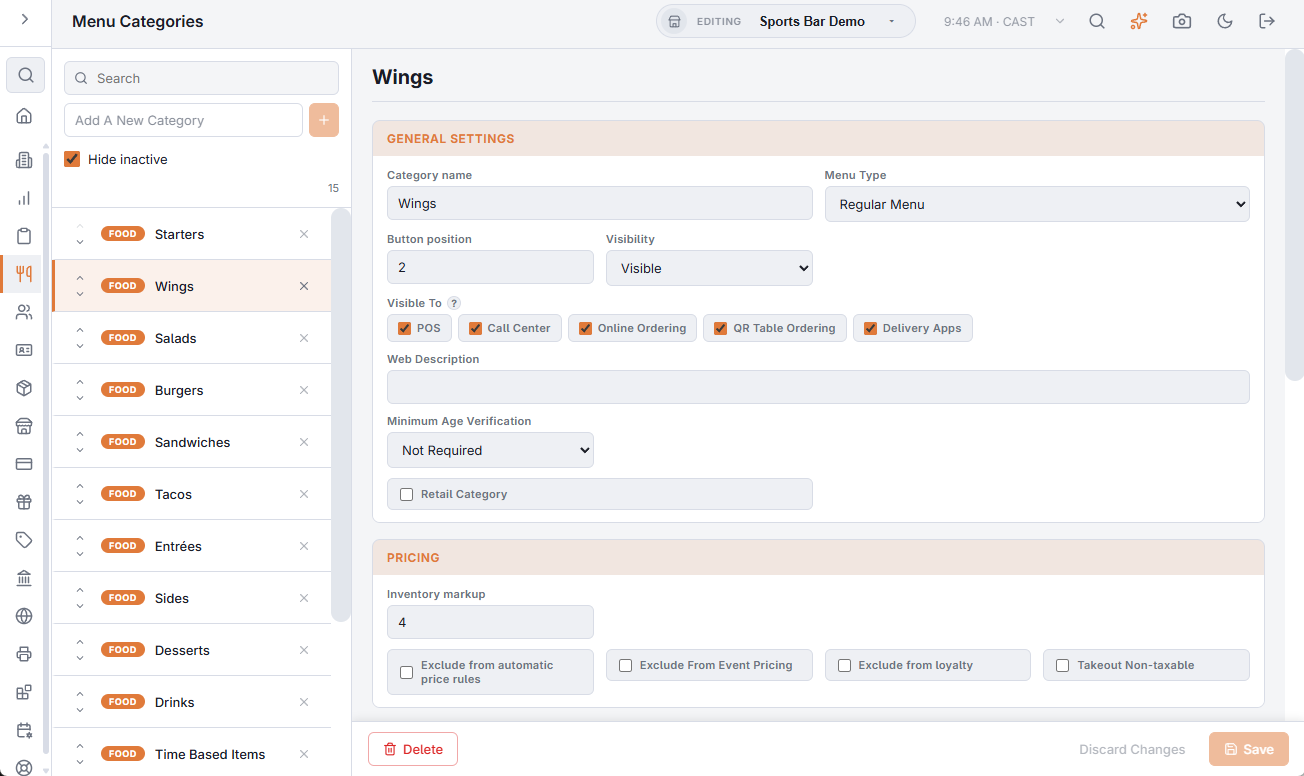
The category list
Each row carries a food or bar tag, and a hidden category carries a Hidden badge.
- Add A New Category — type a name and add it. A new category is a food category, visible, sold on every day at every hour.
- Search — finds categories by name.
- Hide inactive — on by default; hides hidden categories.
- Move up / Move down arrows — change the order of the category strip, while the search is empty. See Item buttons and screen placement.
- The delete icon, and Delete in the editor, delete the category after you confirm. A category that still has items cannot be deleted: move or delete its items first.
Changes in the editor are kept until you choose Save; Discard Changes puts back what was saved. Upcharges are the exception: each box saves when you leave it.
General Settings
- Category name — the tab’s text.
- Menu Type — Regular Menu (food) or Bar Menu. The difference is explained in How the menu is organized: food and bar.
- Button position — the tab’s place in the strip.
- Visibility — Visible or Hidden. A hidden category has no tab at the register. Its items keep the category’s sales channels. While a category is hidden, the editor shows only its name, type, position, visibility and channels.
- Visible To — the channels the category, and every item in it, is sold on: POS, Call Center, Online Ordering, QR Table Ordering and Delivery Apps.
- Web Description — food categories: the line under the category’s heading on the online menu.
- Minimum Age Verification — Not Required, or an age from 12 to 30. The register asks to check the guest’s age when an item from the category is added. See Age verification and ID-required items.
- Retail Category — food categories: for goods sold as they are bought. It carries a retail tag when you add an item, and its items’ Inventory tab offers Retail Inventory.
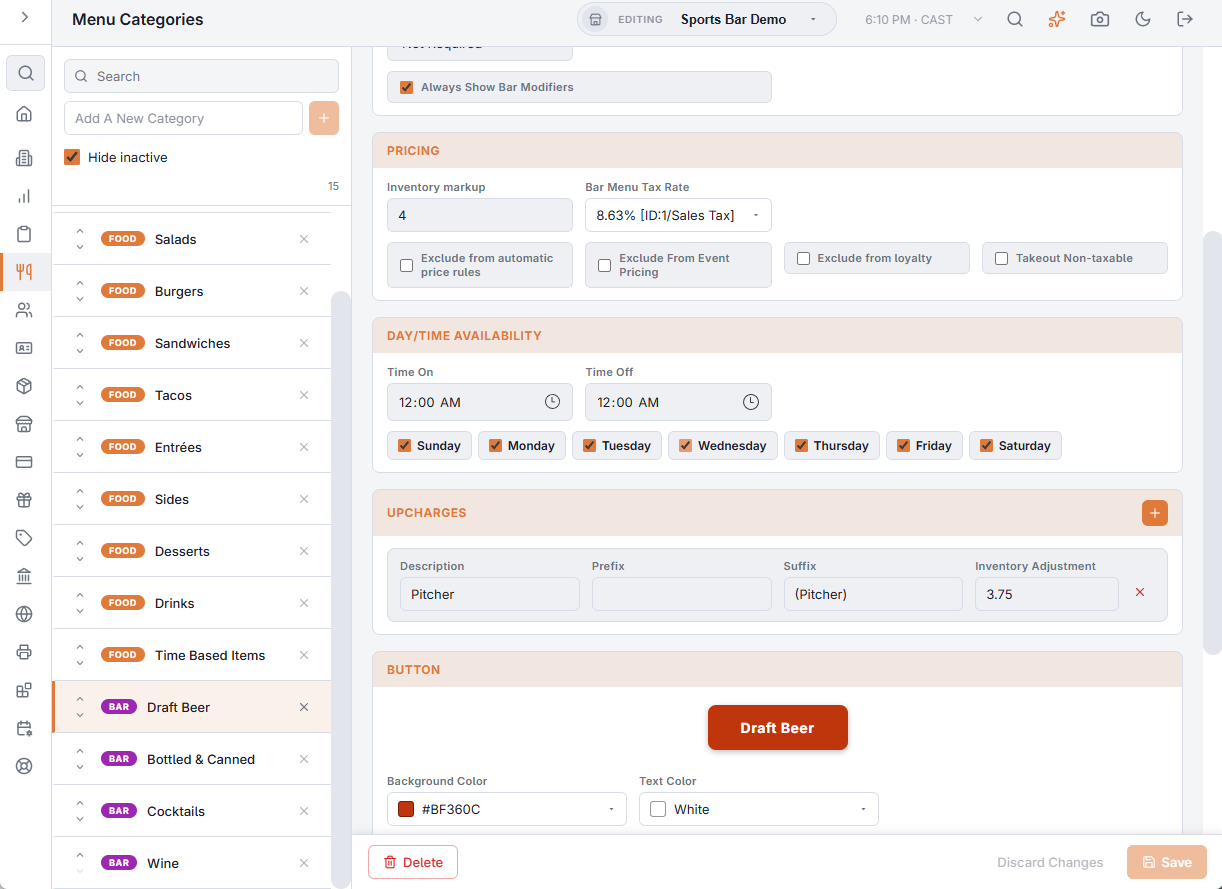
- Always Show Bar Modifiers — bar categories: the bar modifiers sit in a row under the item buttons, ready to tap. See Bar modifiers and qualifiers.
Pricing
- Inventory markup — the multiplier that turns an item’s recipe cost into its suggested price, in the item’s Inventory tab and on Menu Costing. Left at 0, the store’s target food cost is used. See Menu Costing: cost, margin and a recommended price for every item.
- Bar Menu Tax Rate — bar categories: the tax rate charged on every item in the category, picked from the store’s tax rates (or None). See Sales tax setup.
- Exclude from automatic price rules — store-wide price rules skip the category’s items. Rules set on the category or on an item still apply. See Price rules.
- Exclude From Event Pricing — event price changes do not touch the category’s items. See Special and event pricing.
- Exclude from loyalty — the category’s items earn no loyalty points.
- Takeout Non-taxable — the category’s items are not taxed on take-out orders.
An item has its own exclusion boxes on its Pricing tab. Either one is enough to exclude it.
Day/time Availability
- Time On and Time Off — the hours the tab shows, in store time. The same time in both means all day; a window that ends before it starts runs past midnight. A Breakfast category that goes at 11:00 is set here.
- The day boxes, Sunday to Saturday — the days the tab shows.
Items have their own hours too; an item shows only when both its own and its category’s allow it.
Upcharges
Bar categories only. The + adds an upcharge, such as Double or Tall, with its Description, Prefix, Suffix and Inventory Adjustment; the × deletes one. See Bar menu upcharges (Double, Tall, Premium, Virgin).
Button
A preview shows the tab’s button. Set its Background Color, Text Color and Button Image. The image shows when the register’s layout uses Text + Image or Image Only. See Button images.
Reporting
The category’s Id, for reference.