Back Office › Activity › Orders › Orders lists the store’s orders for the current business day or for a date range, with their totals and status. From a row you can open the order, reprint its receipt, refund a settled order or void an open one. The payments themselves are on the Transaction Log and Credit Cards pages, which have their own help topic.
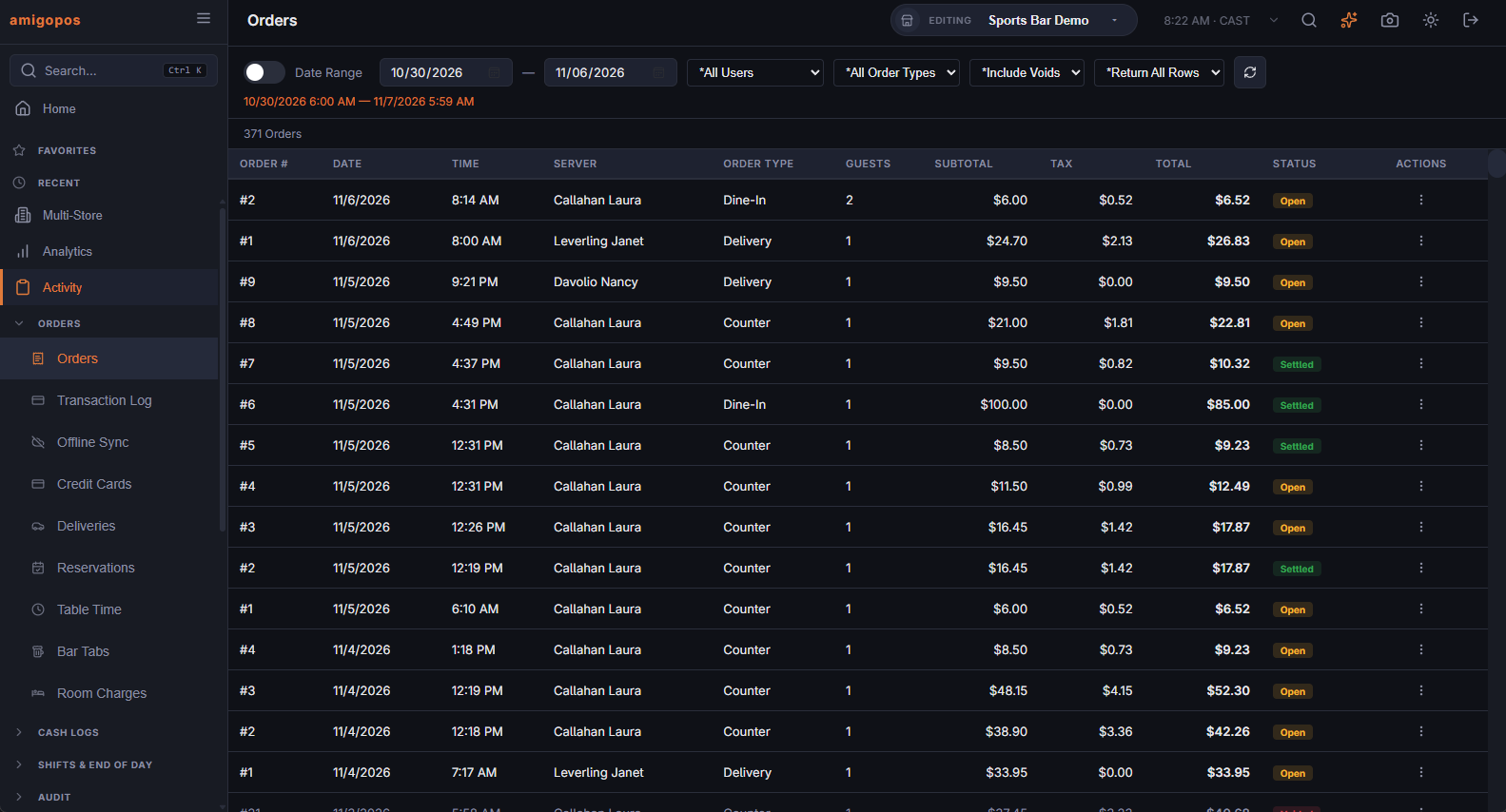
Choosing what to list
The toolbar is the same on all the lists under Activity › Orders, except that each page has only the filters that apply to it.
- Current Business Day — the switch is on when the page opens. The list shows the orders that no End of Day has closed yet. The line under the toolbar says since which End of Day, or that End of Day has never been run.
- Date Range — switch it off to get two dates, set to the last 7 days. Each day runs from the store’s Business Day Start Time (see General settings) to just before that time the next day, so an order rung after midnight belongs to the day before, as on the End of Day report. The line under the toolbar shows the exact start and end.
- All Users — pick an employee to see only the orders on which they are the server.
- All Order Types — pick an order type to see only those orders.
- Include Voids, Exclude Voids or Voids Only.
- Return All Rows, or Top 100, 500, 1000 or 2000 to limit the list.
- The refresh button (Update Results) runs the search.
The columns
The number of orders found shows above the grid. The newest orders come first; with Top, the list keeps the newest ones. Voided orders are struck through.
| Column | What it shows |
|---|---|
| Order # | The daily order number. |
| Date, Time | When the order was started, in store time. |
| Server | The employee the order belongs to. |
| Order Type | The order type, such as dine-in or delivery. |
| Guests | The guest count. |
| Subtotal, Tax, Total | Tax is all the order’s taxes added together. |
| Status | Voided; Refunded with the amount refunded; Settled; or Open for an order not yet paid. |
What you can do with an order
The ⋮ button in the Actions column opens a menu. It offers only the actions that fit the order’s status.
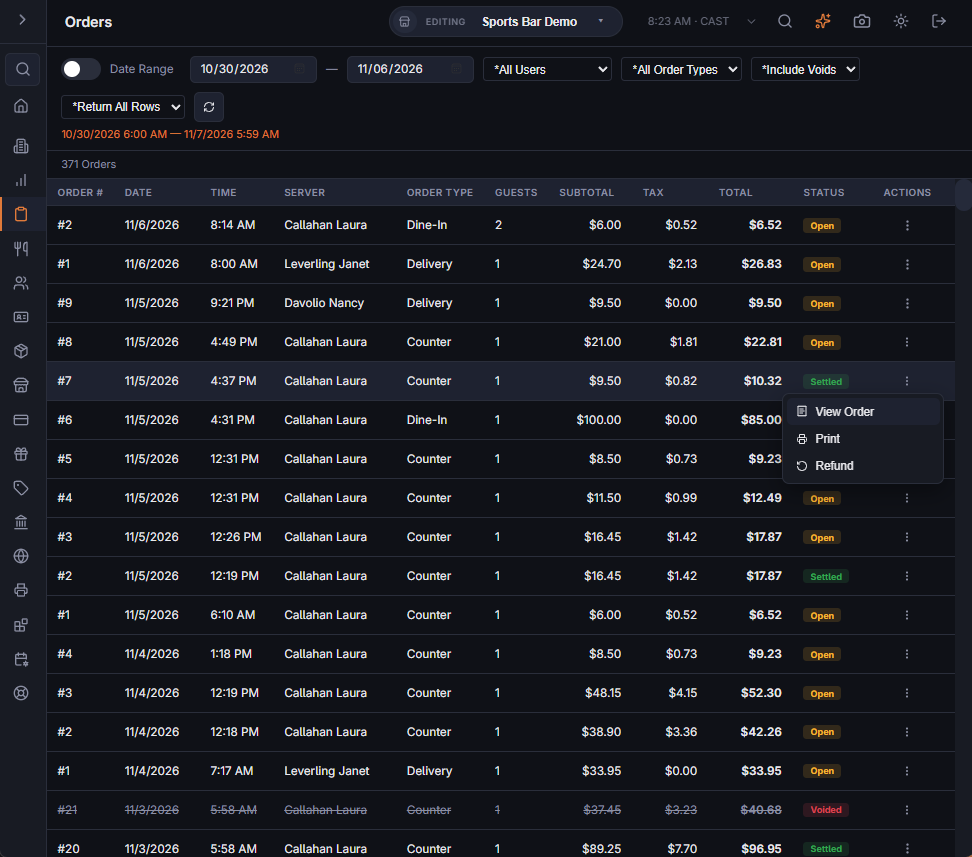
- View Order — opens the order in a read-only viewer (see below).
- Print — reprints the customer receipt. If it cannot print, Print failed. appears.
- Refund — settled orders only. Opens the same refund screen as the register. See Refunds.
- Void — open orders only. A settled order is refunded, not voided. The steps are the same as at the register: a void reason, whether to return the items to inventory and, for an order paid by card, whether to send the money back. See Voids and the void reason prompt and Voiding an order that was paid by card.
- Undo Void — shown on voided orders. A voided order cannot be restored; the message A Voided Order Cannot Be Restored — Ring It Again appears.
Refund needs the Refund permission and Void the Void Order permission. Without it, a manager is asked to approve. After a refund or a void, the list reloads.
The order viewer
The viewer shows the order as it is now. It cannot change anything.
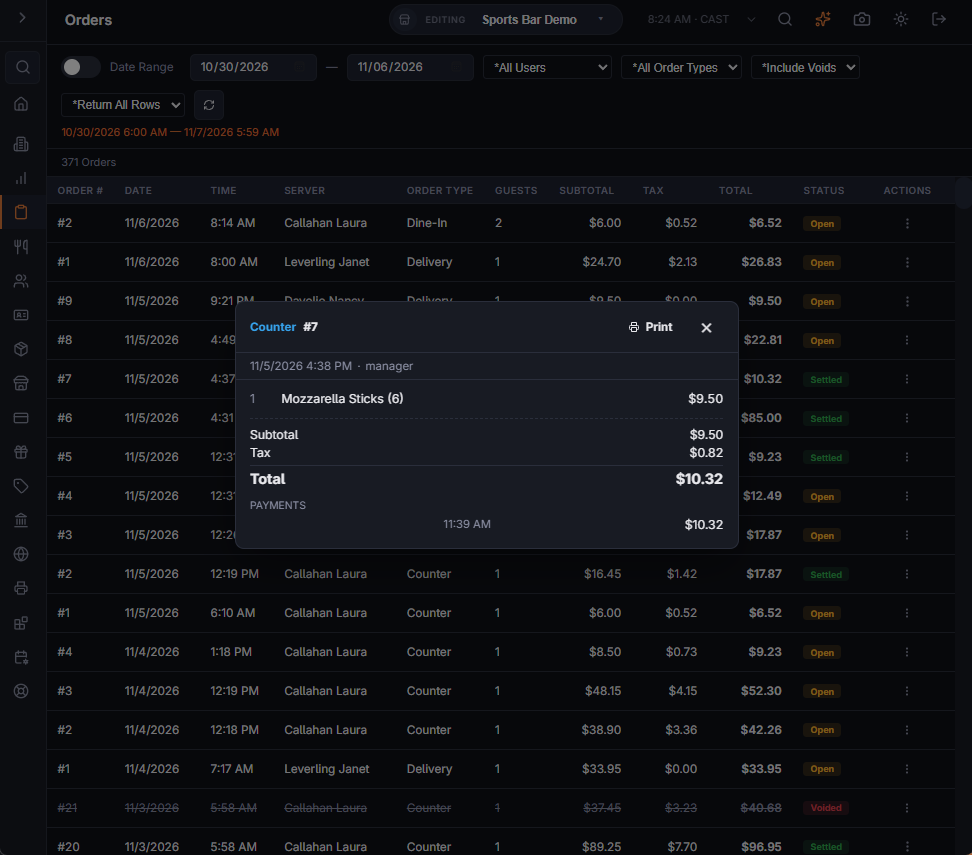
- The header: the order type and number, with Voided or Refunded when that applies, and a Print button that reprints the receipt.
- The date and time, the store, the server, the customer and the table.
- The item lines, with modifiers indented. Removed lines are faded and struck through.
- Subtotal, Discount, Tax, Delivery Fee, Gratuity and Total. Discount, delivery fee and gratuity show only when there is one.
- Payments — each payment method with its time, the last four card digits and the amount. Voided payments are struck through.
- Refunds — the reason, when, how it was paid back, who did it and the amount.
- The order notes, if any.
Close it with ✕ or by clicking outside it.
Related: The end-of-day report, The orders list: recalling and managing orders.
Order history
The order viewer that opens from this page has a History button next to Print. It lists everything that happened to the order, newest first. See Order history: everything that happened to a check.