The KDS shows one card per order routed to this screen. Cards sit in the order the work should be started, and a rush order jumps to the front.
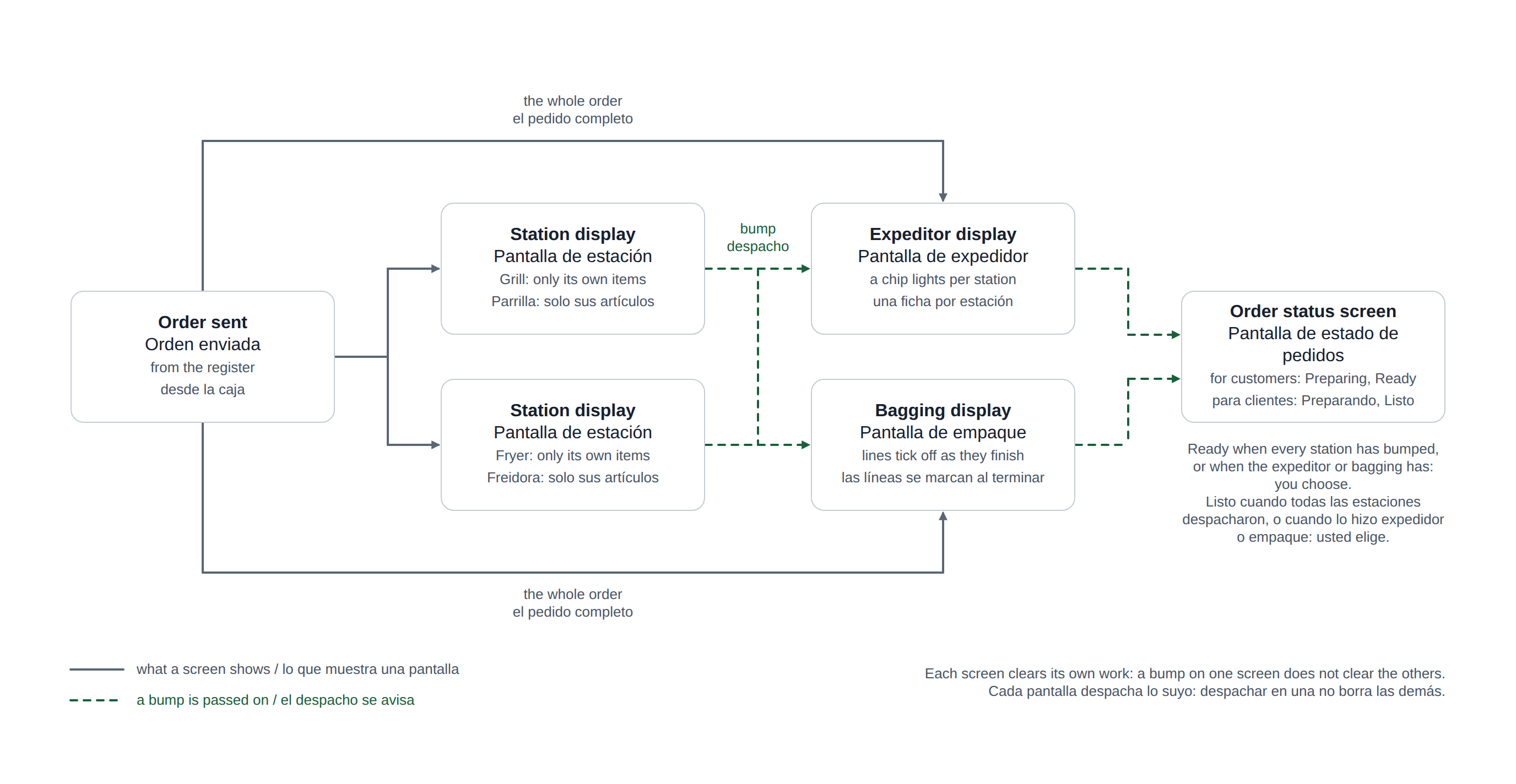
In one picture: which screen shows what, and how a bump on one screen reaches the others.
Reading a card
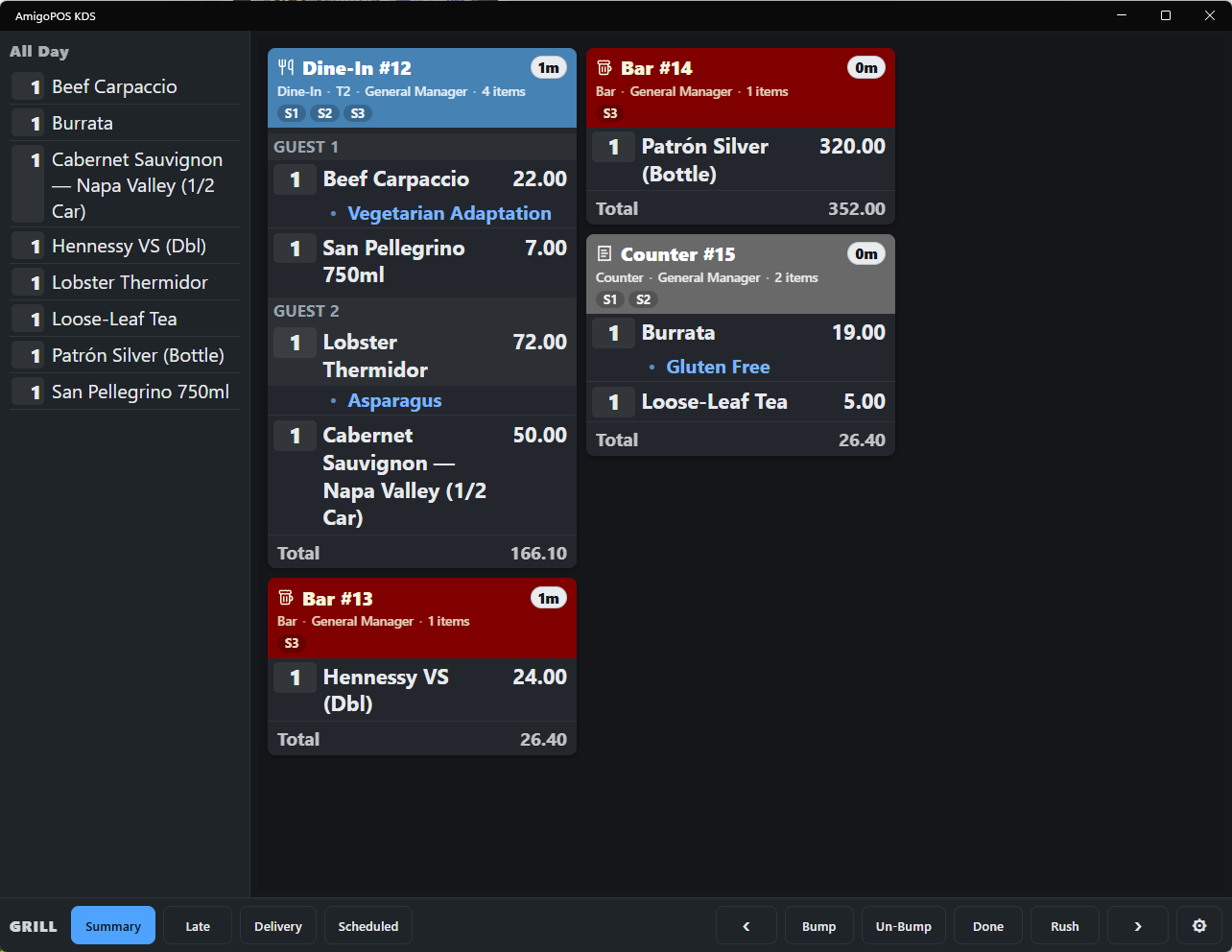
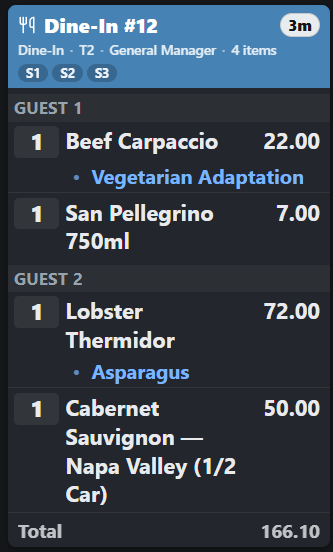
- A two-line header. The first line is the order number and a timer pill showing how long the order has been waiting; the pill takes the colour of the order’s age. The second line is the order type, the table, the server and the item count.
- Item lines, each with its quantity in a box on the left so a 3 is never mistaken for a 1 from across the kitchen.
- Modifiers as a bulleted list under their item.
- Note and allergen bars — special instructions and allergen warnings in their own coloured bands. Allergen bars are never dimmed, whatever else is happening to the card.
- Guest headers where the order is split by seat, and course headings where the order is coursed.
Colour and age
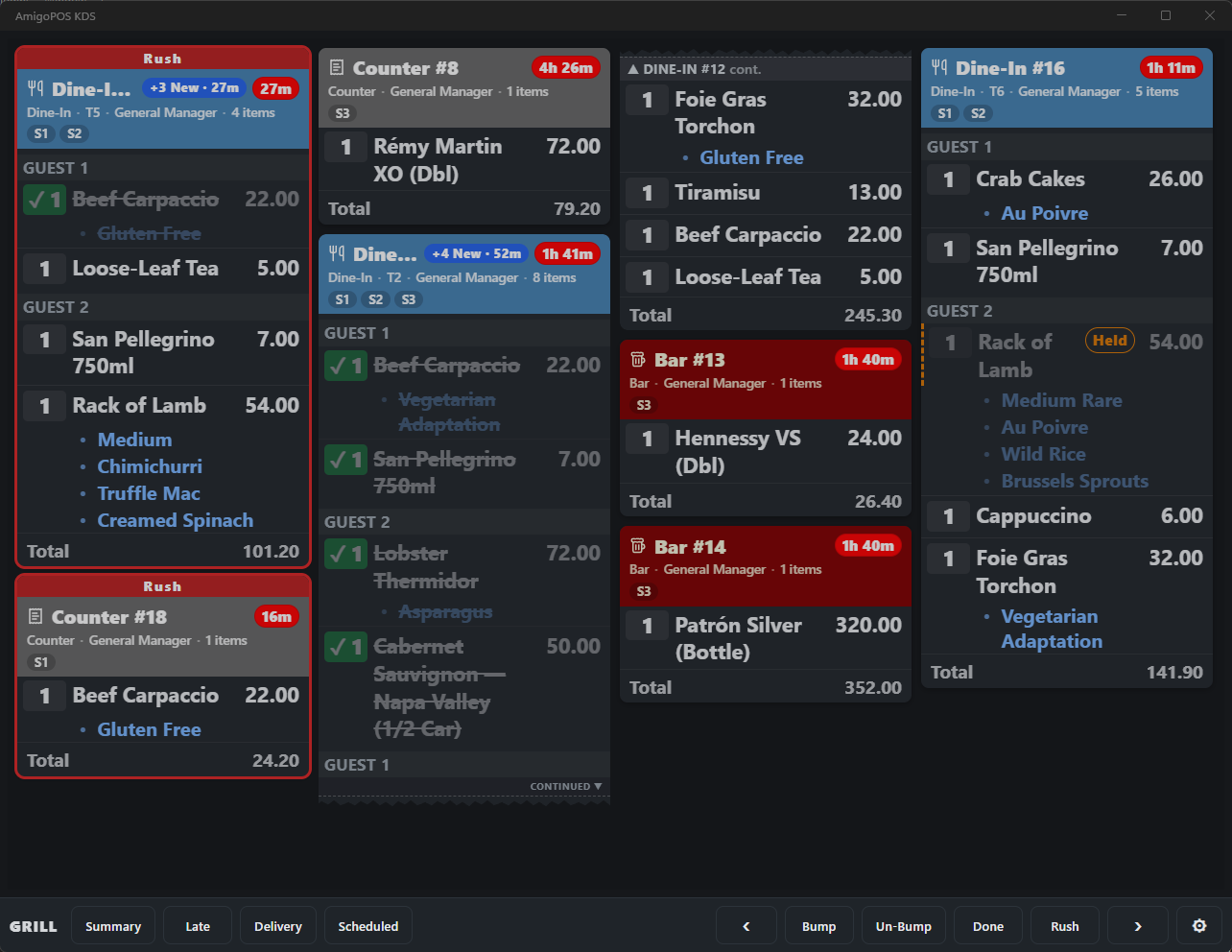
The timer pill starts neutral, turns to the aging colour after the aging threshold and to late after the late threshold. The thresholds are set in Back Office, overall and per order type — see Aging and late thresholds. Ages are measured against server time, so a display whose own clock is wrong still colours correctly.
Rush
A rushed order carries a red RUSH band and is sorted to the front on every display that shows it. See Rushing an order.
Changed orders
When an order is changed after it was sent, the card comes back with the new lines bold and the lines that were already there dimmed. Voided lines are struck through rather than removed, so the line that was cancelled is still visible.
Struck lines
A line that a cook has bumped on this display is struck through with its modifiers. Struck lines stay on the card until the whole card is bumped, and drop out of the all-day summary. See Bumping, item bumps and the Done tray.
Cutting the board down
Filters show only late orders, only delivery, or only scheduled ones. The all-day summary replaces the cards with total quantities per item across everything still to be made — how many steaks, not which tickets.
Paid orders and split checks
- Paid orders stay until they are bumped. An order paid at the counter before it is cooked still reaches the kitchen and stays on the board. A paid order nobody bumps drops off 6 hours after it started (or after its scheduled time).
- A check split at payment does not come back as new cards — its items were already on the board under the original order.
- A check split before payment shows only the items the kitchen has not made yet; if nothing is left to make, no card appears and no chime plays.
Besides station and expeditor screens, a display can be a bagging display or a customer order status screen. Scheduled orders wait for their kitchen time — see Scheduled orders on the KDS.
Call-center orders and orders on hold
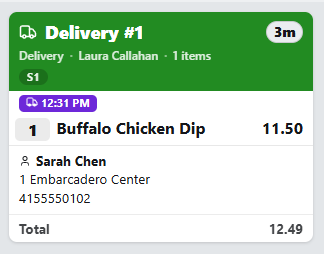
- An order taken by the call center carries a call-center mark, and its card shows the customer’s name, phone and address, with the apartment or unit line.
- An order that has not been sent to the store yet — held at the call center, waiting for an online payment, or waiting for a server to approve a QR order — is not on any display until it is released.
- Its timer starts when the store received it, not when it was first rung in, so an order paid by link twenty minutes after the call does not arrive already late.
Cancelled orders
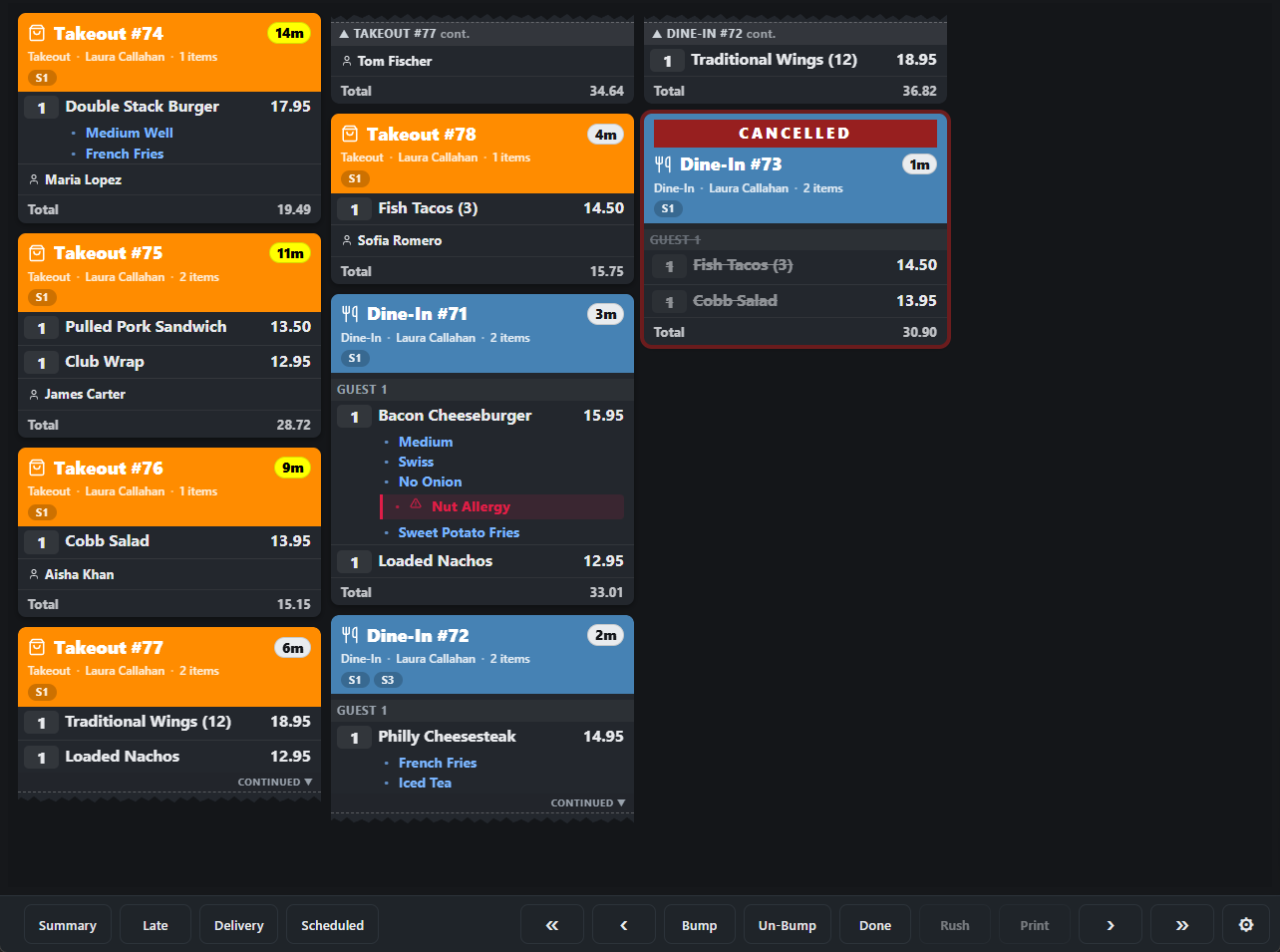
When an order is voided while its card is on the board, the card does not just vanish. For 15 seconds it stays up with a flashing red Cancelled band, a red outline and every line struck through, and the new-order bell rings if Sound is on — so whoever is cooking it knows to stop.
- Bump the card to clear it straight away. Its lines can’t be struck, and it is left out of the all-day summary.
- When orders are combined, or a check is split by guest, the original order is voided behind the scenes; its card simply goes, because the food lives on in the new orders.
- Station, expeditor and bagging screens all show it. The customer order status screen never does.
Modifier alerts
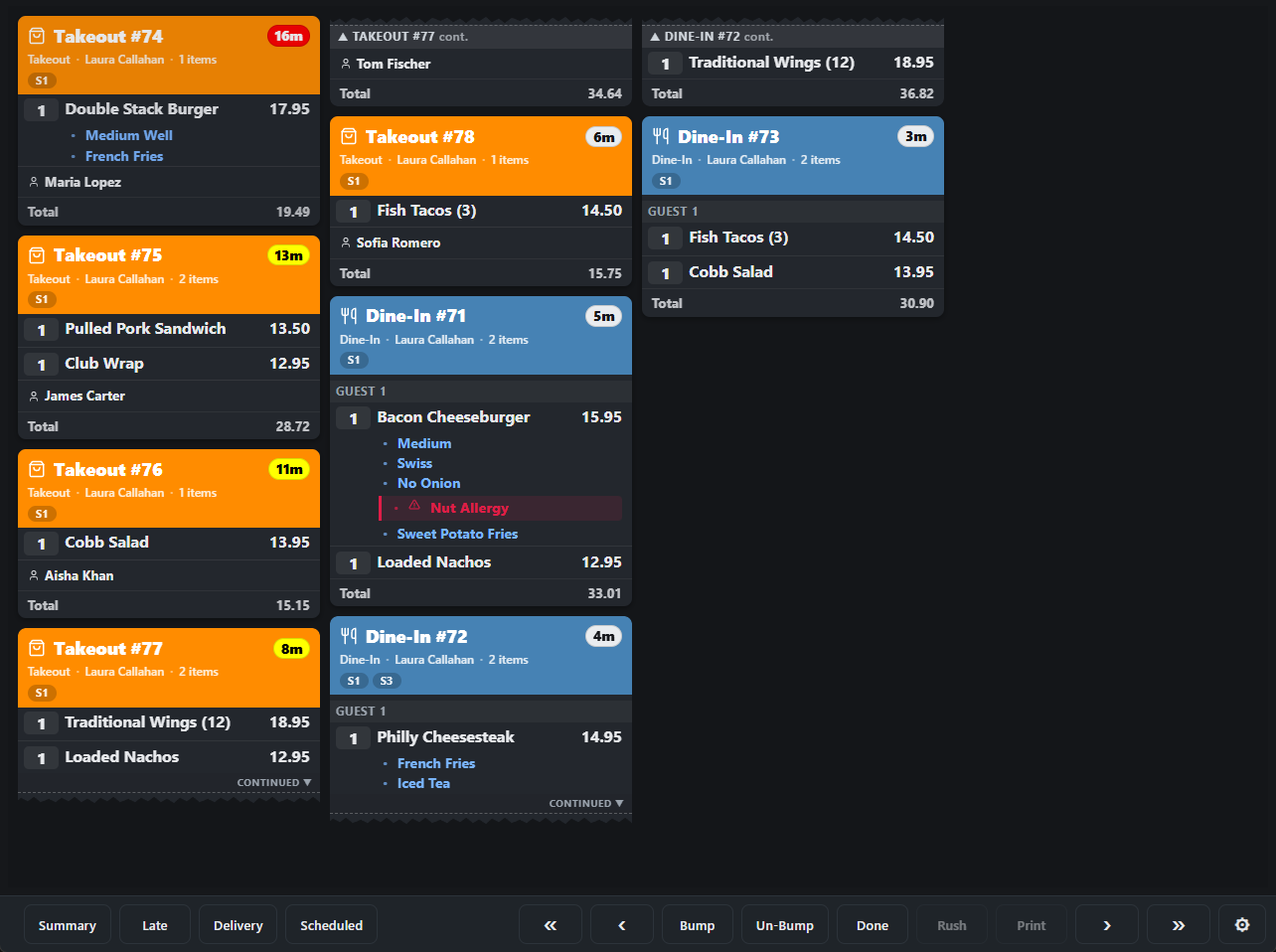
A modifier set to Show as alert on kitchen display — for example everything in an Allergies group — prints on the card in bold red with a warning sign, the way allergen lines do, so “no nuts” can’t hide in a list of sides. It does not change how the card bumps, and it is not shown on a line that was removed from the order.
Set it up in Food modifiers, groups, and levels.
Delivery tickets
A delivery ticket shows a truck. On an order for as soon as possible it also shows the time the order is due at the customer’s door, so the kitchen sees how much of the promise is left, not only how long the ticket has been up.