Back Office › Menu › Menu Setup › Food Modifiers holds the modifier groups of the food menu. A group is one question the register asks, such as “Choose a side” or “Toppings”. Its modifiers are the answers, and its levels are the quantity words tapped with them, such as No, Lite or Extra.
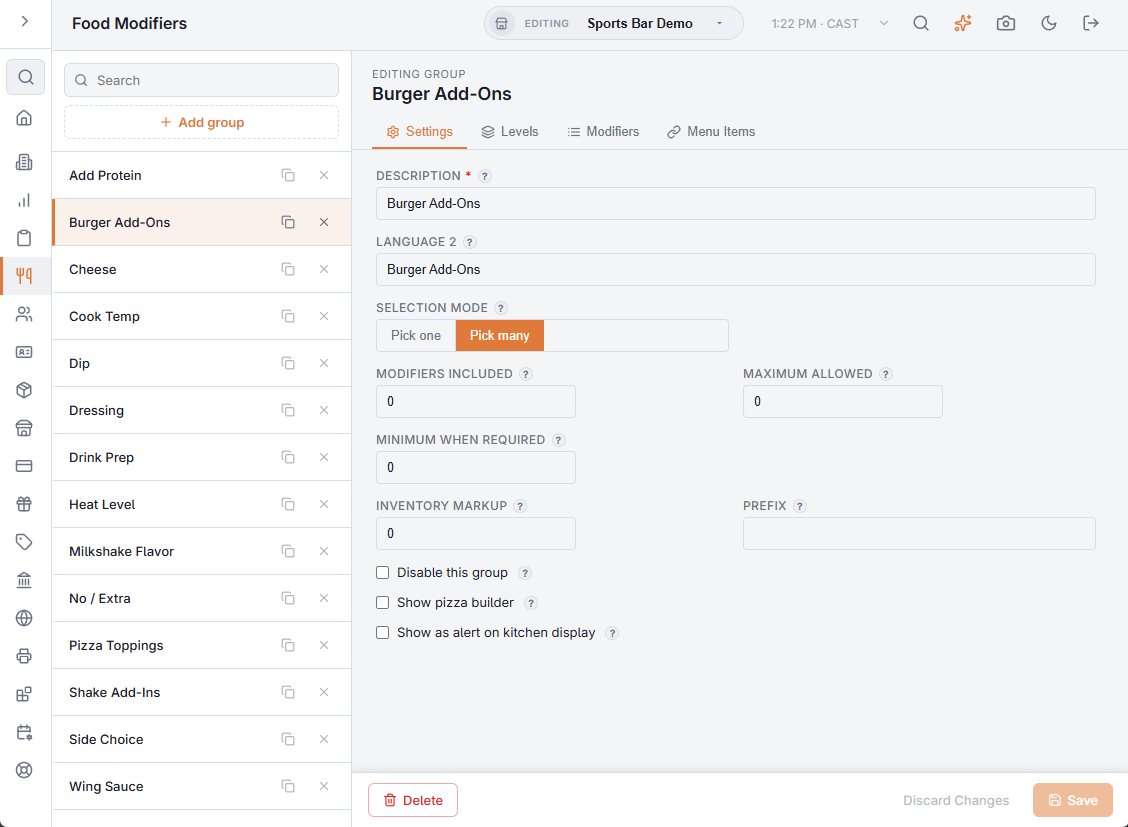
The group list
- Search finds groups by name; Add group starts a new one.
- The copy icon on a row clones the group, with all its levels, modifiers and per-level prices, after you confirm.
- The delete icon deletes the group after you confirm, with its levels, modifiers, prices and menu-item assignments.
The group opens on the right with four tabs: Settings, Levels, Modifiers and Menu Items. The last three unlock once the new group has been saved. Settings are kept until you choose Save.
Settings
- Description — required: the group’s name, as the cashier sees it.
- Language 2 — the name in the second language. Blank uses the description.
- Selection mode — Pick one allows one modifier; Pick many allows any number.
- Modifiers included — how many choices ride free on the item’s price. The cheapest picks are the free ones; the rest are charged at their regular price. 3 means the first three toppings are free.
- Maximum allowed — the most modifiers that can be picked. 0 means no limit. It cannot be lower than Modifiers included.
- Minimum When Required — where an item makes the group mandatory, the fewest choices the guest must make, such as 2 for “Choose two sides”. 0 or 1 means any one choice. It cannot be more than the maximum.
- Inventory markup — the multiplier that turns a modifier’s recipe cost into its suggested price, in the recipe editor and on Menu Costing. See Menu Costing: cost, margin and a recommended price for every item.
- Prefix — the word the register uses in the “included at no charge” hint, such as Toppings. Blank uses the description.
- Disable this group — ticked, the group is not offered at the register, but it and its assignments are kept.
- Show pizza builder — the group’s modifiers appear on the visual pizza; see Pizza builder.
- Show as alert on kitchen display — see Kitchen alerts below.
- Own Prep Stations — prints the group at the ticked prep stations instead of with its item, for example the drink included with a breakfast at the bar. Leave every station unticked to print it with its item. See Sending a modifier group to its own prep station.
Levels
The Levels tab shows the group’s levels as chips, with their quantity multiplier when it is not 1. Add level, or a chip, opens the level editor:
- Button text — required: the word on the level button, such as EXTRA or NO.
- Language 2, Prep text and Prep text (Lang 2) — the second-language name, and what prep tickets and the kitchen display show.
- Quantity multiplier — how much of the modifier’s recipe the level takes from stock: 1 a full serving, 2 double, 0.5 half, 0 nothing. It does not change the price. See How modifiers, levels and pour sizes use stock.
- Visibility — Hidden keeps the level but leaves it off the register.
- Sort Order — the level’s place in the row of level buttons.
- Button Image — a picture for the level button; see Button images.
A level named No, None, Without or Sin is a removal: it is never charged and never uses a free slot.
Modifiers
The Modifiers tab shows each modifier as a card with its price and prep text. Add modifier, or a card, opens the modifier editor:
- Modifier name — required.
- Language 2, Prep text and Prep text (Lang 2).
- Base price — the charge when no per-level price applies. 0 for free choices.
- Button position — its place among the group’s buttons.
- Visibility — Hidden keeps the modifier but leaves it off the register.
- Visible To — the channels where it can be chosen.
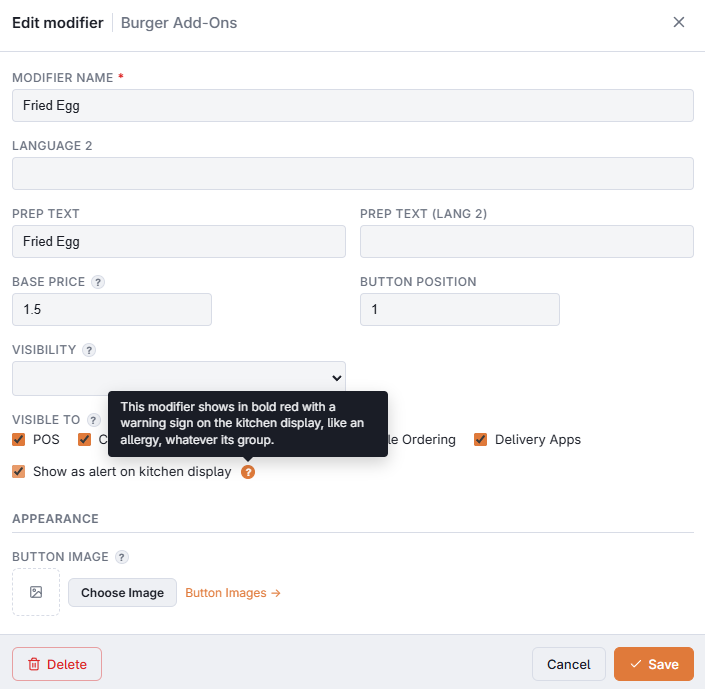
- Show as alert on kitchen display — this modifier stands out on the kitchen display in every group.
- Button Image — a picture for the modifier button.
- Per-level prices — one row per level. A price in a row replaces the base price when that level is picked; a blank row uses the base price. The × clears a row. Base 0.50 with EXTRA at 1.00 charges 1.00 for Extra.
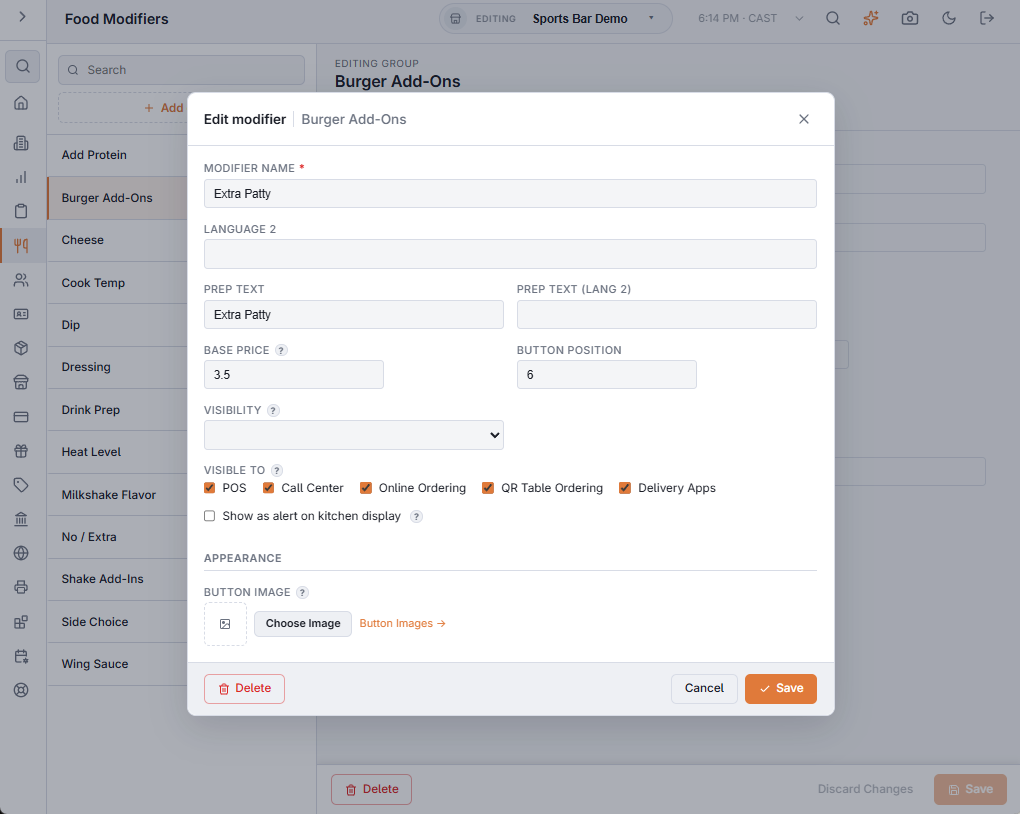
The level and modifier editors open in a dialog with their own Save, Cancel and Delete. Clicking outside the dialog does not close it.
Menu Items
The Menu Items tab shows every item the group is assigned to. Pick a Menu category and a Menu item, tick Mandatory if the item cannot be added without an answer, and choose Assign. Each row of Current assignments has its own Mandatory switch and a remove icon. See Modifier group assignments.
Kitchen alerts
Show as alert on kitchen display makes a modifier stand out on the KDS in bold red with a warning sign, like an allergen line. Use it for the choices a cook must not miss: allergies, dietary needs, “no gluten”.
- On a group (its Settings tab) — every modifier in the group is an alert. The usual choice for an Allergies or Dietary Needs group.
- On one modifier (its editor) — that modifier is an alert in every group it is in.
- It only changes how the line looks on the kitchen display. Printed prep tickets, prices and bumping are unchanged.
- Cloning a group copies the setting.
What the cook sees: KDS overview and ticket layout. How the groups behave while ringing: Food modifiers and how they prompt.