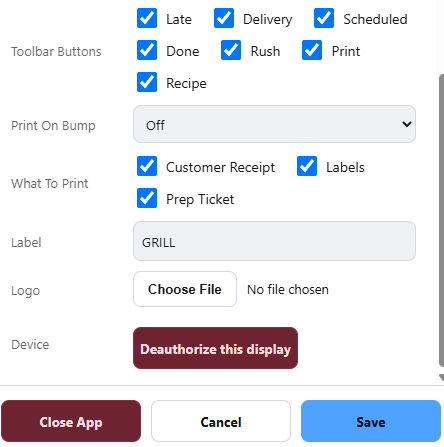
KDS settings are per display. The screen over the grill and the screen on the pass can look and behave completely differently, and changing one does not touch the other. Open the overlay from the toolbar; Save and Close stay pinned at the bottom however long the list gets, and changes take effect as soon as they are saved.
What the board shows
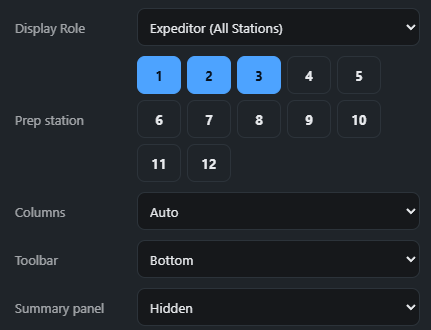
- Display role — Station shows the items routed to the prep stations picked below; Expeditor shows every order with per-station readiness chips. See The expeditor display.
- Prep stations — which of the twelve prep slots this screen displays. Pick more than one; a small kitchen might put everything on one screen. Two screens can show the same station.
- Columns — fixed count, or auto to fit the display width.
- Summary panel — hidden, or docked left or right.
- Toolbar — top or bottom, whichever suits the mounting.
Readability
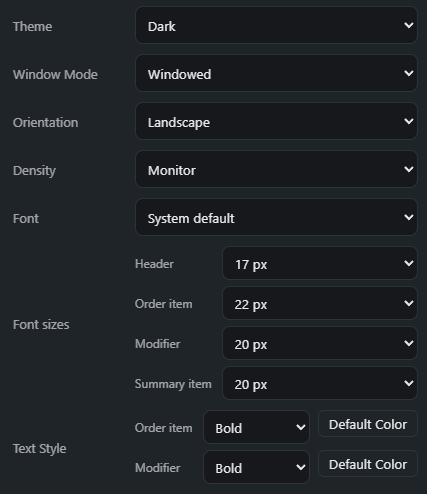
- Theme — dark or light. Dark for most kitchens; light where the screen faces a window.
- Orientation — landscape or portrait, and density — monitor or compact.
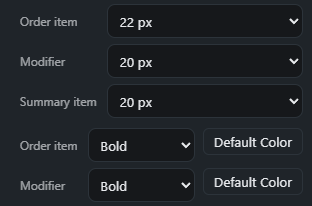
- Font and separate sizes for headers, items, modifiers and the summary, adjustable a pixel at a time.
- Text style — weight and colour for item lines and, separately, for modifiers. Bold white items over grey modifiers is the usual choice; a kitchen that reads modifiers first can invert it.
New tickets
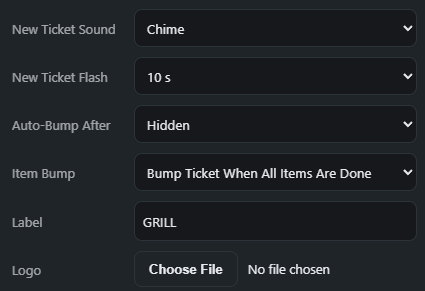
- Sound — a chime when a new ticket arrives. It plays for new tickets only, never for a refresh or a reconnect. In a browser the first chime needs one tap on the screen after the page loads; the app needs nothing.
- Flash — the new card flashes on arrival, for a screen where the chime cannot be heard.
Bumping
- Item bump mode — whether tapping a line strikes it, and whether the card bumps itself once every line is struck.
- Auto-bump after N minutes — off by default; clears cards on their own on a screen nobody touches.
Both are explained in Bumping, item bumps and the Done tray.
Identity
A label (EXPO, GRILL, BAR) and a small logo to tell screens apart at a glance, and the language for this display. Language is per screen, so the kitchen can read Spanish while the pass reads English.
The app
On the installed app the overlay also has Window mode (Windows: full screen or a normal window), Android bars (show or hide the system bars), and Check for updates, which shows the version and forces a check. See The KDS app.
More settings
- Display Role also offers Bagging (Whole Order) and Order Status Screen — see The bagging display and The order status screen.
- Print On Bump and What To Print — see Printing from the KDS.
- Warning After, Late After, Ticket Order, Tell The Server When Bumped and Show Server Calls — see Setting up a bar screen.
- Toolbar Buttons — tick which of Late, Delivery, Scheduled, Done, Rush, Print and Recipe appear, to save space. All show except Recipe. A hidden button’s key still works, and hiding Late, Delivery or Scheduled also switches that filter off.
- Close App — the red button in the footer closes the app. It takes two taps; the second reads Tap Again To Close.