Back Office › Menu › Menu Setup › Menu Items is where each menu item is created and set up: its name and category, its prices, when and where it is sold, its modifier groups, where it prints, how its button looks and its recipe.
The item list
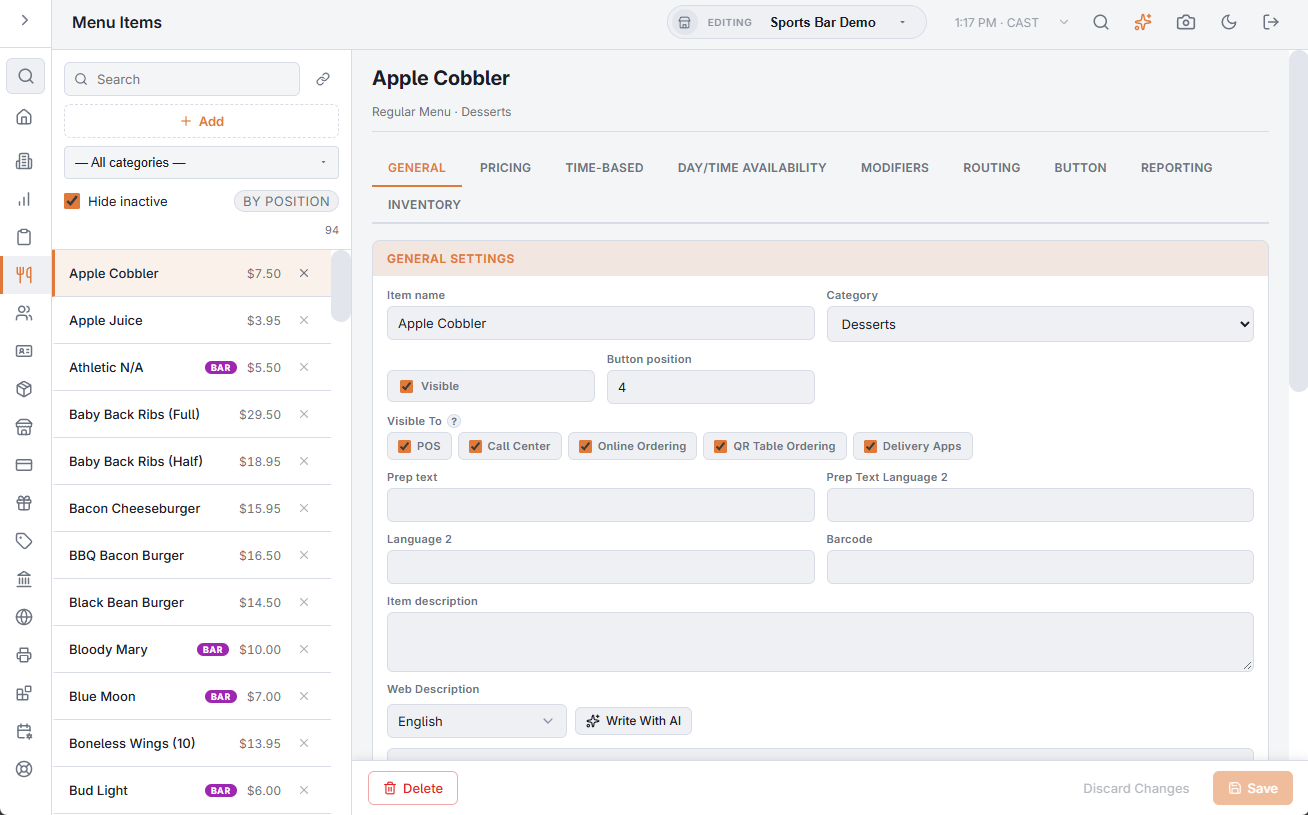
The list on the left shows every item, with its price. Bar items carry a bar tag, and hidden items a Hidden badge.
- Category picker — All categories, or one category. Pick one category to reorder its items.
- Search — finds items by name.
- Hide inactive — on by default; hides items whose Visible box is cleared.
- A–Z / By position — switches the store’s button order for food items, or for bar items when a bar category is picked. It changes the register too. See Item buttons and screen placement.
- Move up / Move down arrows — shown when one category is picked, the search is empty and the order is By position.
- The delete icon on a row deletes the item after you confirm. It cannot be undone.
Adding an item
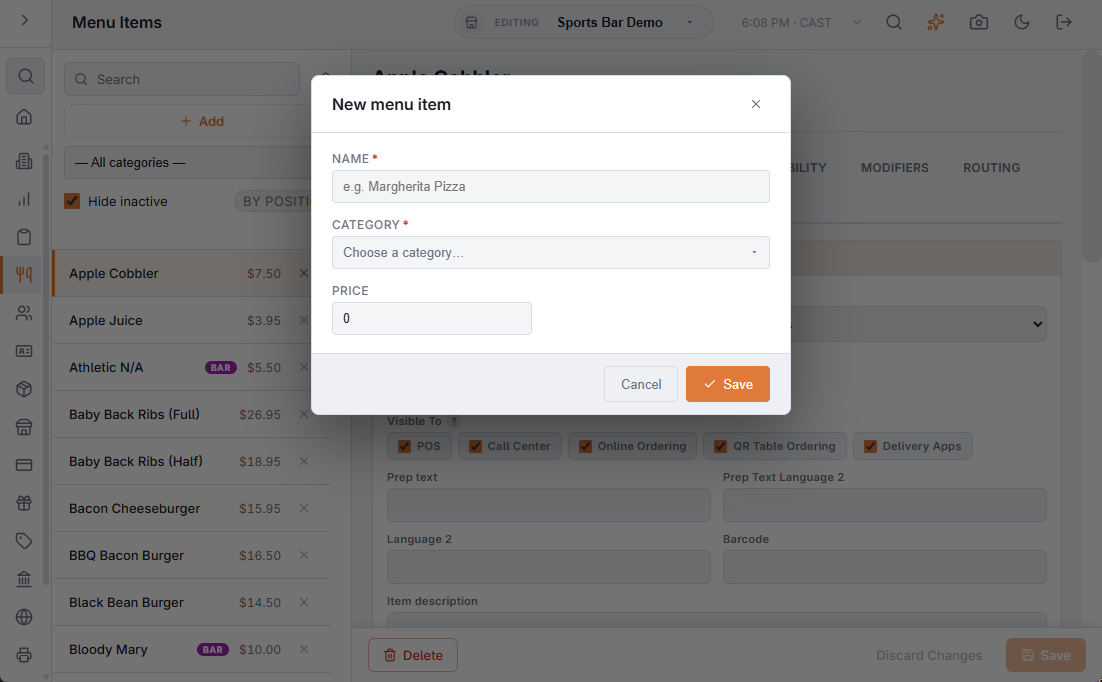
Choose Add. The New menu item window asks for the Name, the Category and the Price. Each category carries a food, bar or retail tag. An item in a bar category becomes a bar item. The new item opens in the editor on the right.
Saving
Changes to the item are kept until you choose Save. Discard Changes puts back what was saved, and Delete removes the item. Two things save on their own as soon as you act: the Web Image and the Allergens. Saved changes reach the registers without a restart.
The tabs
| Tab | What it holds |
|---|---|
| General | Name, category, visibility, sales channels, prep text, descriptions, web details and allergens. |
| Pricing | Price, tax rate, web price, codes, weighed pricing, the exclusions and, on bar items, the upcharge prices. |
| Time-based | Billing by elapsed time, for pool tables, lanes and rentals. |
| Day/time Availability | The hours, and for food items the days, when the item is offered. |
| Modifiers | The item’s modifier groups. |
| Routing | Cook time, prep stations and label printers. |
| Button | Button colors and image. |
| Reporting | Id, created date and revenue center. |
| Inventory | The item’s recipe. |
General
- Item name and Category — the button text and the category tab it sits in. Uncategorized leaves it out of every category. Moving an item to a bar category makes it a bar item, and moving it to a food category makes it a food item.
- Visible — cleared, the item is not offered at the register, even by scanning.
- Button position — its place among the category’s buttons.
- Visible To — the channels the item is sold on: POS, Call Center, Online Ordering, QR Table Ordering and Delivery Apps (Uber Eats, on the next menu publish). A channel the category is hidden from hides the item there too.
- Prep text and Prep Text Language 2 — what prep tickets and the kitchen display show, when it should differ from the name. See Prep ticket names and abbreviations.
- Language 2 — the item’s name in the second language.
- Barcode — the code a scanner looks up.
- Item description — a longer description, used on the customer display and on Uber Eats.
- Web Description — the description on the online menu. Write With AI writes or polishes it in the language you pick; see Writing web descriptions with AI.
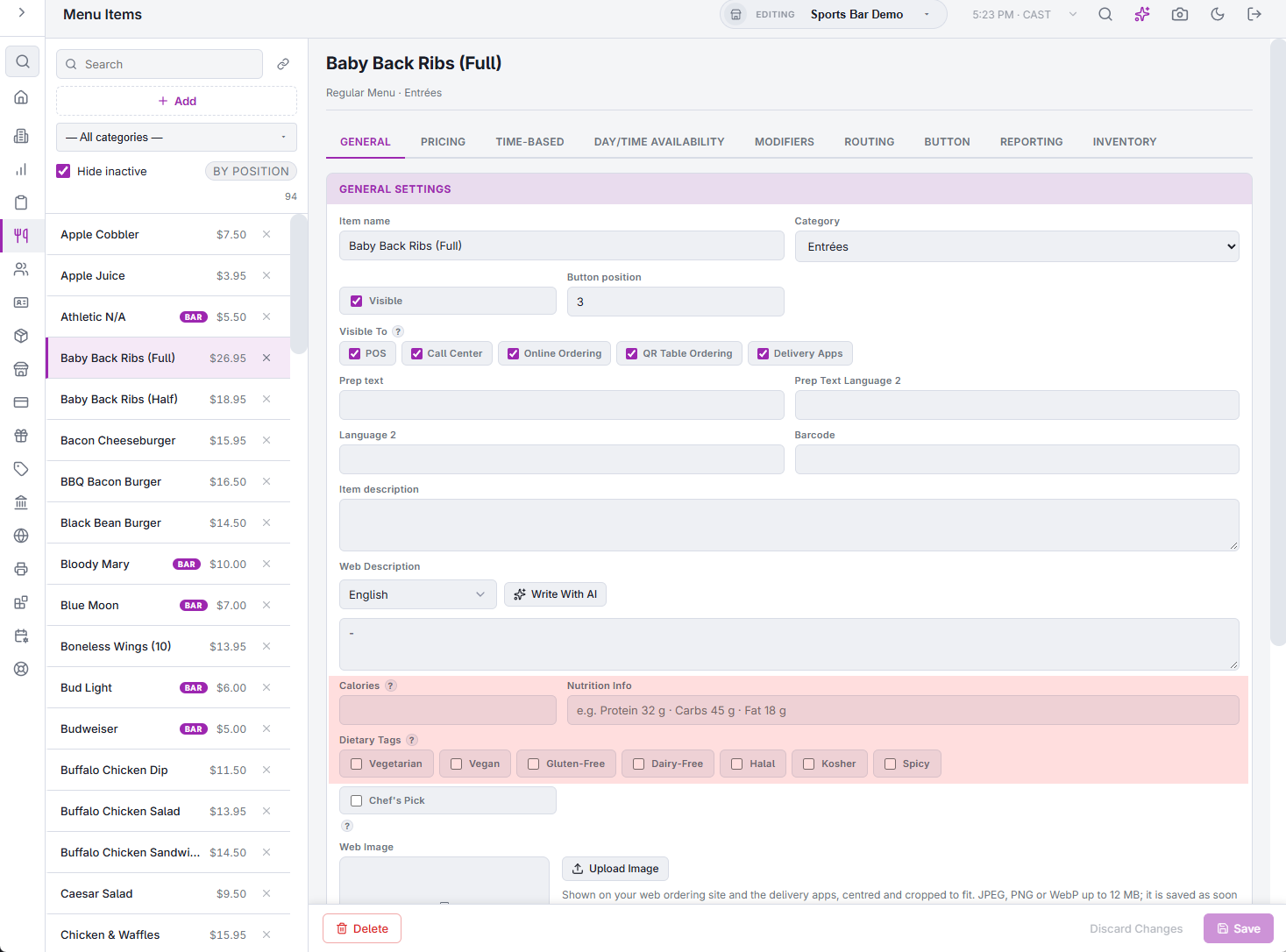
- Calories, Nutrition Info, Dietary Tags and Chef’s Pick — for the online menu; see below.
- Web Image — the photo on the online menu and the delivery apps, see below.
- Allergens — the staff-verified allergen list; see Allergens on menu items.
Calories and nutrition
- Calories — a whole number up to 9999. The online menu shows it after the price, as 450 Cal, and again in the item window.
- Nutrition Info — one line of free text, up to 400 characters, such as Protein 32 g · Carbs 45 g · Fat 18 g. It shows in the item window, beside the calories.
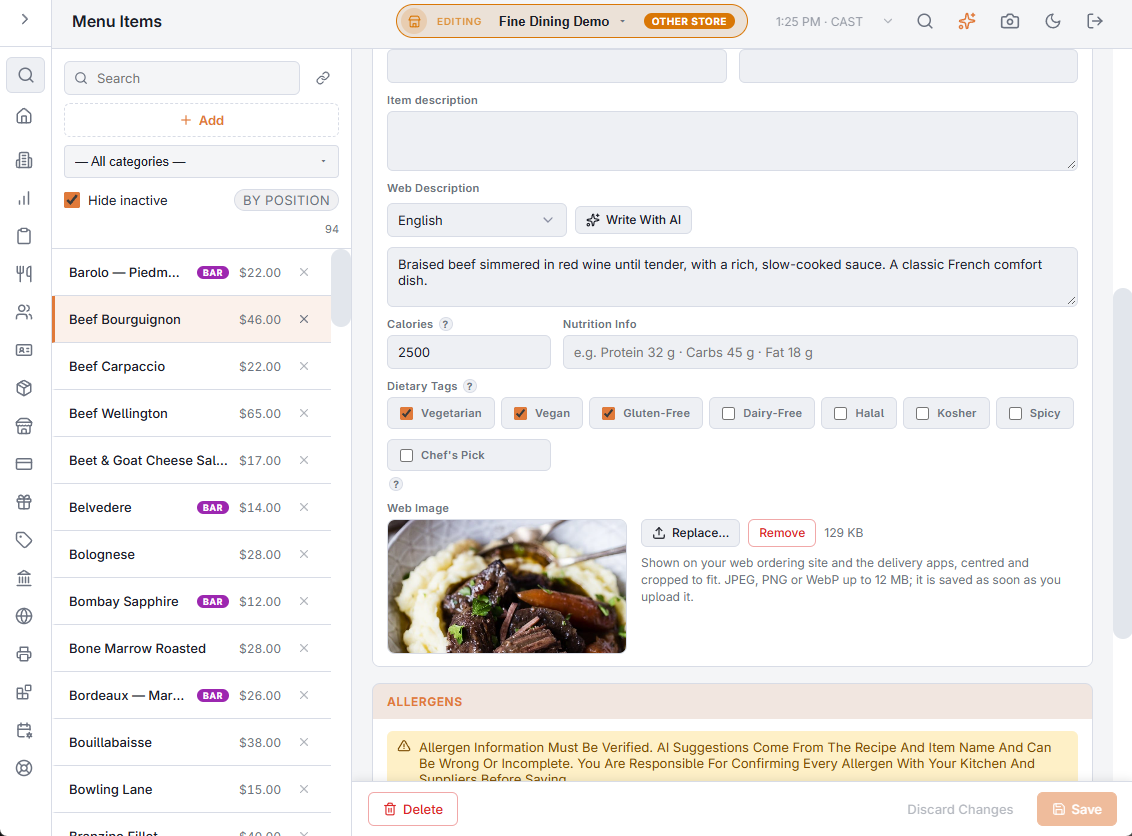
Both are optional and for the web ordering site only: they are not on the register, receipts or the kitchen display. Left blank (or calories at 0), nothing is shown. Copying an item copies them. The online menu can take a few minutes to show a change.
Dietary tags and Chef’s Pick
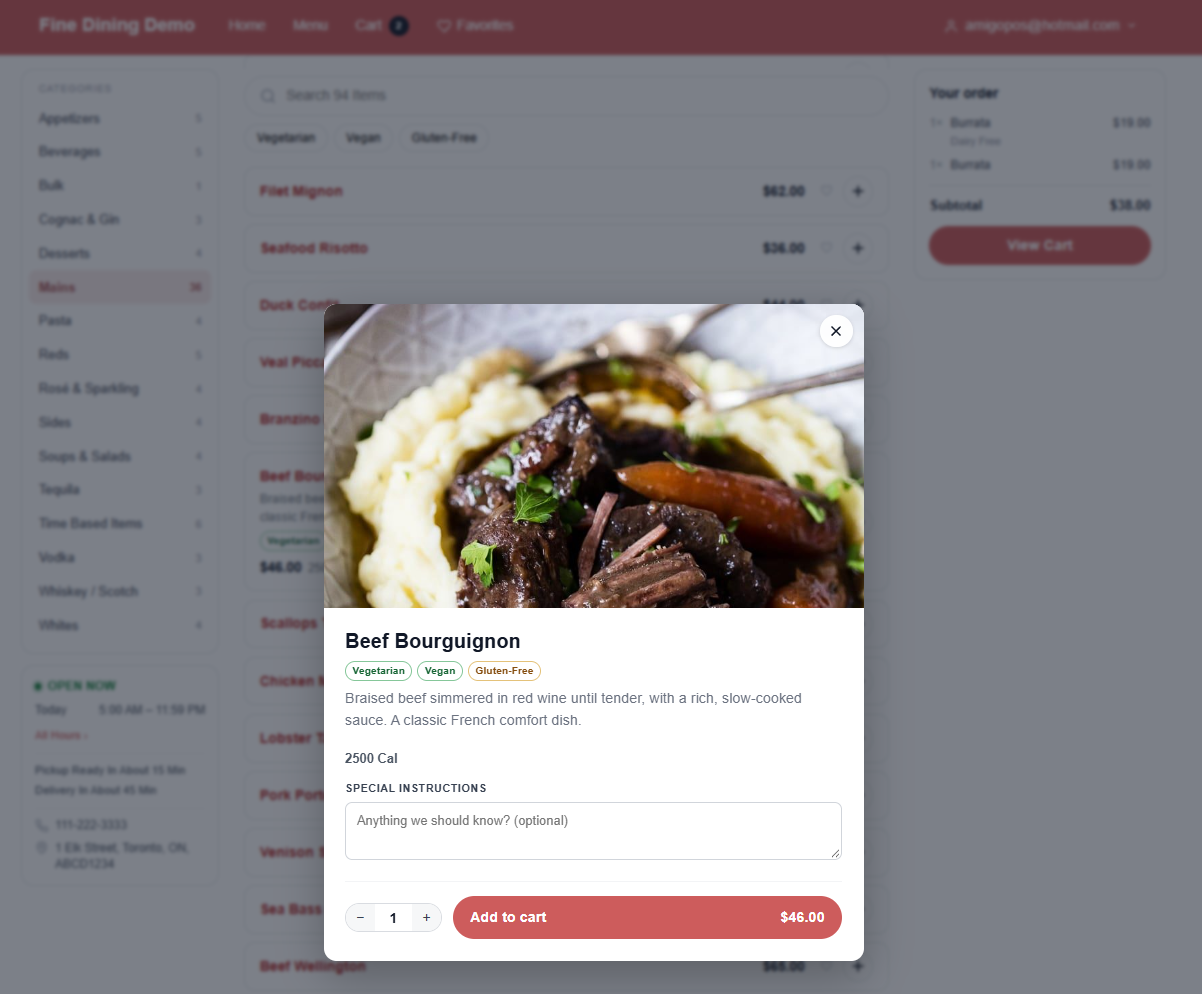
- Dietary Tags — tick any of Vegetarian, Vegan, Gluten-Free, Dairy-Free, Halal, Kosher and Spicy. The online menu shows them as small labels on the item’s row and in the item window, and the menu search finds them.
- Chef’s Pick — puts a Chef’s Pick badge next to the item’s name on the online menu and in the item window.
When any item has a tag, the online menu page shows a Dietary Preferences chip for each tag in use. A customer who picks chips sees only the items that carry all of them. It works together with the search and the allergen filter, and the choice is remembered on that device.
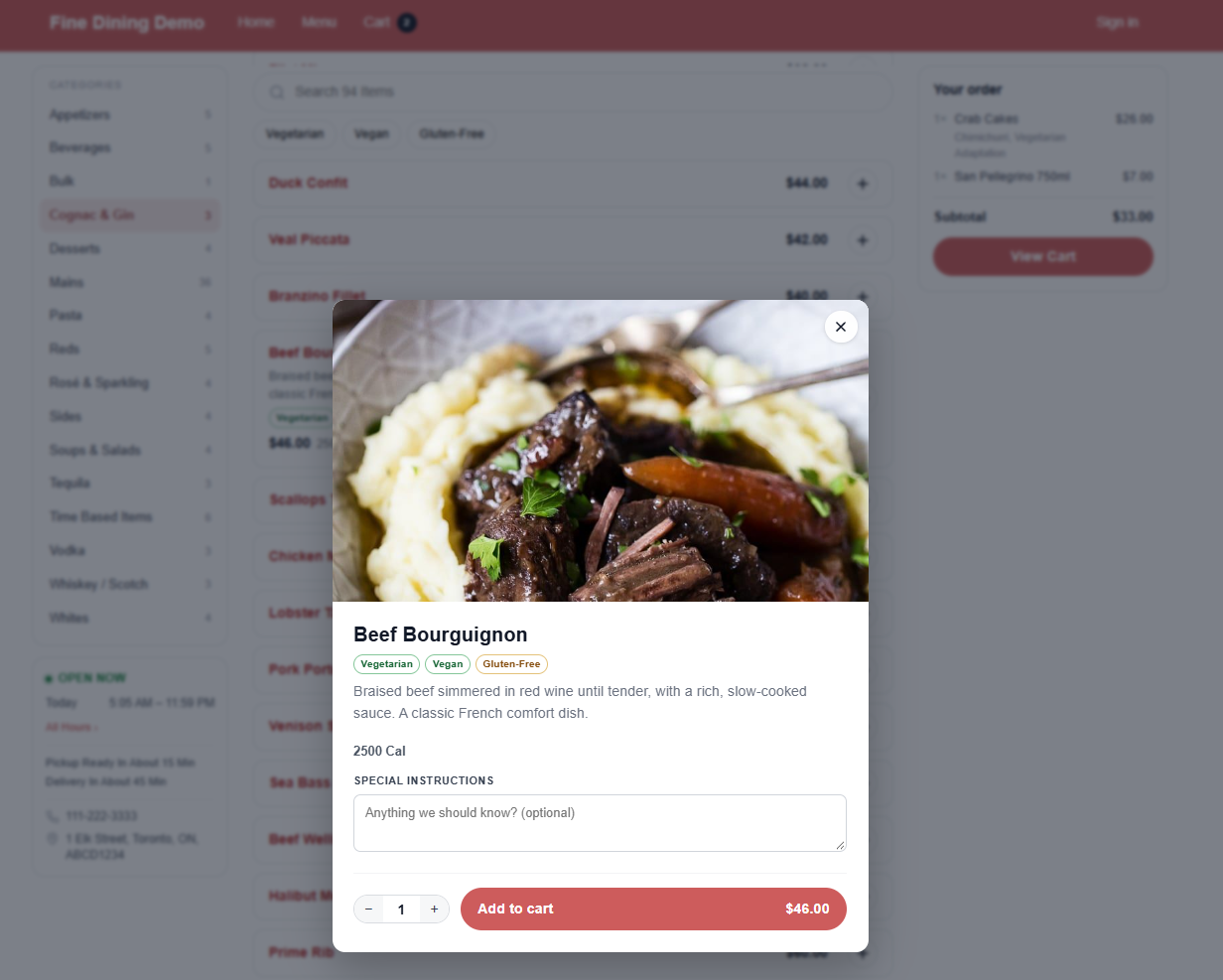
Web image
Upload Image (or Replace…) takes a JPEG, PNG or WebP file. It is shown centred and cropped to fit, and it is saved the moment it is uploaded. Remove takes it off after you confirm. The line beside the buttons gives the image’s size; a file that is too large or too small is refused with the limits.
Pricing
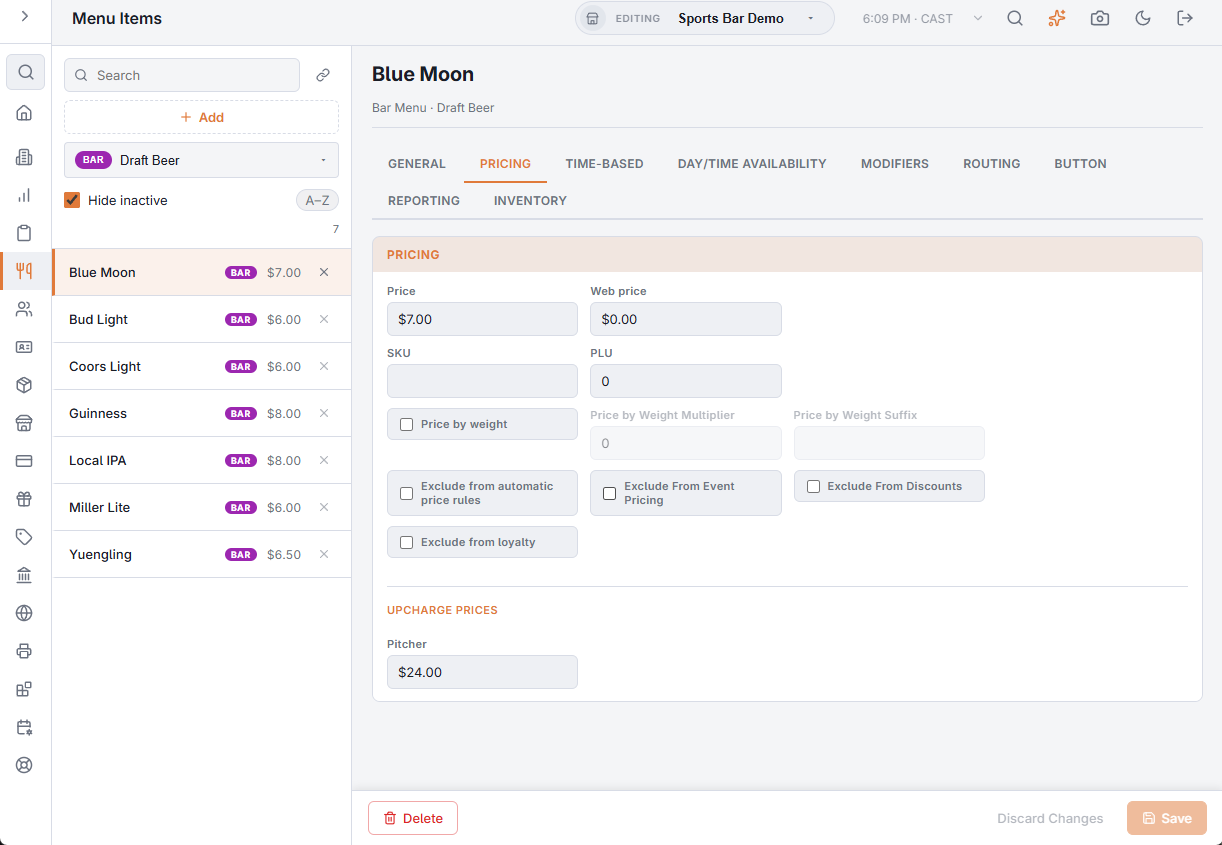
- Price — the regular price.
- Tax Rate — food items only. Pick one of the store’s tax rates, shown with its percentage, ID and name, or None. A bar item is taxed at its category’s Bar Menu Tax Rate. See Sales tax setup.
- Web price — the price on the online menu and Uber Eats. At 0 they use Price.
- SKU and PLU — codes the register can look the item up by.
- Price by weight, with Price by Weight Multiplier and Price by Weight Suffix — for items weighed on a scale. See Scales for weighed items.
- Exclude from automatic price rules — store-wide and category rules skip the item; a rule set on the item itself still applies. See Price rules.
- Exclude From Event Pricing — event price changes do not touch it. See Special and event pricing.
- Exclude From Discounts — order and coupon discounts leave it out.
- Exclude from loyalty — it earns no loyalty points.
- Upcharge Prices — on bar items in a category with upcharges, one price box per upcharge. See Bar menu upcharges (Double, Tall, Premium, Virgin).
Time-based
Ticking Time-based bills the item by elapsed time. The fields are explained in Time-based items (pool tables, lanes, rentals).
Day/time Availability
- Time On and Time Off — the hours the item is offered, in store time. The same time in both means all day. A window that ends before it starts runs past midnight, such as 22:00–02:00.
- Restrict Days and the day boxes — food items only. Ticked, the item is offered only on the days ticked.
The category has its own hours and days, and an item shows only when both allow it.
Modifiers
The groups the register asks when the item is added, their order and which are mandatory. See Modifier group assignments.
Routing
- Cook Time (Minutes) — paces the item on the kitchen display so its course finishes together. Leave it empty for items that should start at once. See Cook times: finishing a course together.
- Prep Stations — Prep 1 to Prep 12, the prep printers and kitchen screens the item goes to.
- Labels — Label 1 to Label 5, the label printers it prints on.
See Print routing.
Button
A preview shows the button. Set its Background Color and Text Color, and its Button Image: Choose Image picks from the store’s library, the × clears it, and the Button Images link opens the library. The image shows when the register’s layout uses Text + Image or Image Only. See Button images.
Reporting
The item’s Id and Created date are shown for reference. Revenue Center groups the item’s sales in reports. See Revenue centers.
Inventory
The item’s recipe, its cost and the price the cost suggests. See Recipes (yield, cost, ingredients) and Menu Costing: cost, margin and a recommended price for every item. In a Retail Category, Retail Inventory replaces the recipe with one stock item of the same name.