Back Office › Employees › People › Employees List is the staff roster. Each employee’s record holds their profile, the jobs they hold and what they are paid, and their punches, shifts and activity. The page appears for jobs that have the Edit Employees permission.
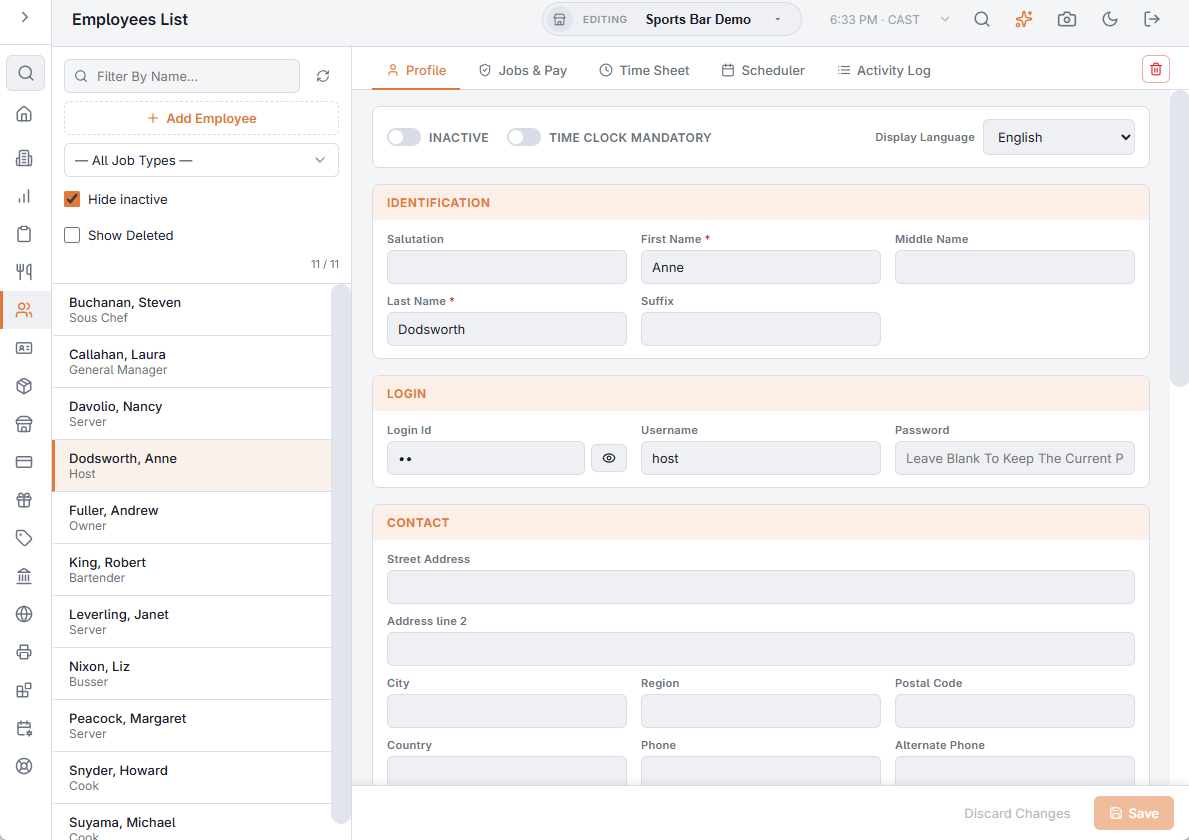
The list
- Filter By Name... — matches the first or last name.
- All Job Types — pick a job to list only the employees who hold it.
- Hide inactive — on when the page opens. Turn it off to see inactive employees too; they are shown faded.
- Show Deleted — adds deleted employees to the list, with a bin icon. See Deleting and restoring below.
- Refresh reloads the list, and Add Employee creates a new one.
Employees are listed as Last name, First name, with their default job underneath.
Adding an employee
Add Employee creates the employee straight away and opens their profile. They get a random four-digit PIN that no one else uses, and one job: the job picked in All Job Types, or the first job in the list when no job is picked. Type their name, give them a PIN they will remember, set their pay on Jobs & Pay, and save.
The tabs
Picking an employee opens five tabs: Profile, Jobs & Pay, Time Sheet, Scheduler and Activity Log. The bin button beside the tabs is Delete Employee.
Profile
Changes are kept on screen until you press Save; Discard puts the record back as it was. If you pick another employee or another tab with unsaved changes, the page asks first.
- Inactive — the employee can no longer sign in, at the register or on the staff site, and drops out of the lists of active staff. Their history stays.
- Time Clock Mandatory — the employee must be clocked in to use the register; signed in without a punch, they are signed out again.
- Display Language — the language the register uses while this employee is signed in.
- Identification — Salutation, First Name, Middle Name, Last Name and Suffix. First and last name are required.
- Login:
- Login Id — the PIN the employee signs in with. It is hidden; the eye button (Show / Hide) shows it. A PIN another employee already has is marked Login Id already in use and cannot be saved.
- Username and Password — for signing in with a username instead of a PIN. The password box is always empty (Leave Blank To Keep The Current Password): type to replace the password, leave it empty to keep it.
- Contact — address, phones and email. The mobile phone and email are where phone-access invites go.
- Employment:
- Payroll ID — the employee’s number in your payroll service; the Payroll exports match on it. See Payroll period report and exports.
- Date Hired.
- Registered Hours Per Week — the hours in the employee’s contract (four eight-hour days = 32), with the monthly figure shown under it. See Registered hours and the hours variance.
- Released, Date Released and Reason Released — for someone who has left. A released employee cannot sign in anywhere, and their phone access stops the next time the phone connects.
- Demographics — Date of Birth, National Id Number and Notes.
- Automobile — driver licence and auto insurance numbers with their expiry dates, for delivery drivers.
Jobs & Pay
An employee can hold several jobs — Server on Friday, Bartender on Sunday — and clocks in under one of them. The job decides the permissions for the shift and the pay rate. See Jobs, roles, and permissions.
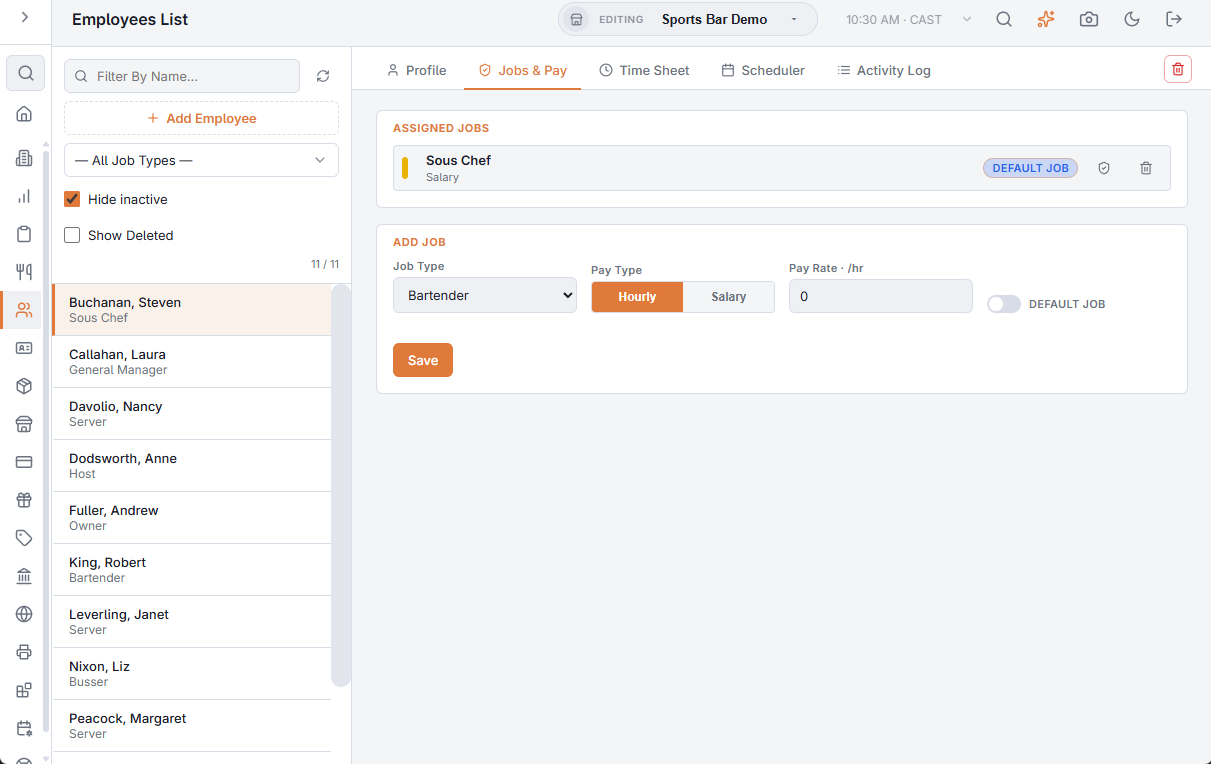
- Assigned Jobs lists each job with its pay; a salaried job reads Salary. Default Job marks the one used when the employee signs in without clocking in.
- Click a job to load it into the form below, headed Edit, to change its pay or make it the default. Cancel takes the form back to Add Job. The job itself cannot be changed while editing.
- The shield button beside a job (Jobs & Permissions) opens that job on the Jobs & Permissions page; the bin button is Remove Job.
- Job Type, Pay Type (Hourly or Salary) and Pay Rate · /hr. When you add a job, the rate starts at the job’s Default hourly rate and changes with the Job Type you pick. A rate of 0 pays the job’s default rate. A salaried job has no rate box.
- Default Job — the first job an employee gets is the default. Making another job the default takes the mark off the old one.
Clocking in stamps the punch with this rate, so a change applies to punches from then on. With Salary, the time clock does not cost the employee’s punches at an hourly rate.
Time Sheet
The employee’s punches between From and To (the last seven days when it opens): Job Type, Clock In, Clock Out (or Still clocked in), Hours, Labor Cost and Cash Tips, with totals underneath.
- Click a punch to edit its job, times, pay rate, cash tips and non-cash tips. Overtime and labor cost are worked out again when you save.
- Add Shift adds a punch by hand, on the employee’s default job; the bin button deletes one, after asking.
- Punches in a locked pay period cannot be changed: saving one shows Save Failed and the editor stays open. See Locking a pay period.
For the whole store, the review labels and approvals, use Back Office › Employees › Scheduling › Time Sheet; see Timesheets.
Scheduler
The employee’s shifts for one week, with This week and arrows for the weeks either side, and the week’s Total Hours and Labor Cost.
- The + under a day adds a shift, on the employee’s default job; clicking a shift edits it: Job Type, Date, Start Time, End Time, Pay Rate and Notes, with Delete.
- New shifts are drafts. Staff see them once the week is published on the Scheduler page; see Scheduler.
Activity Log
What the employee did at the registers between From and To, newest first: When, Action, Station and Order. All actions narrows it to one kind of action. The tab only shows entries; nothing can be deleted here. An entry voided on the User Access Log no longer appears. The same entries for every employee are on the User Access Log; see User access and activity log.
Deleting and restoring
Delete Employee asks first. Nothing is removed: time sheets, orders and payments keep the employee’s name, and their shifts that have not started become open shifts. The employee leaves every list and can no longer sign in, and their PIN and password are cleared.
- You cannot delete the employee you are signed in as, or the last employee.
- To bring someone back, turn on Show Deleted and pick them. The page shows when they were deleted and by whom, and Restore Employee. They come back inactive with a new PIN and no password; switch Inactive off when they return. Shifts that became open shifts stay open.
Documents
Food handler cards, IDs, permits and contracts are kept on Back Office › Employees › People › Documents, with their expiry dates and reminders. See Employee documents and certificates.