Back Office › Employees › People › Phone Access is where managers invite employees to the staff site and see whose phone is set up. The staff site lets employees see their schedule, pick up and give up shifts, tick off their task lists, set availability, request time off, read and answer messages and clock in and out — on their own phones, in the browser, with nothing to install. It shows nothing about sales, other people’s pay or the register. The page appears for jobs with the Manager Screen permission.
Switching it on
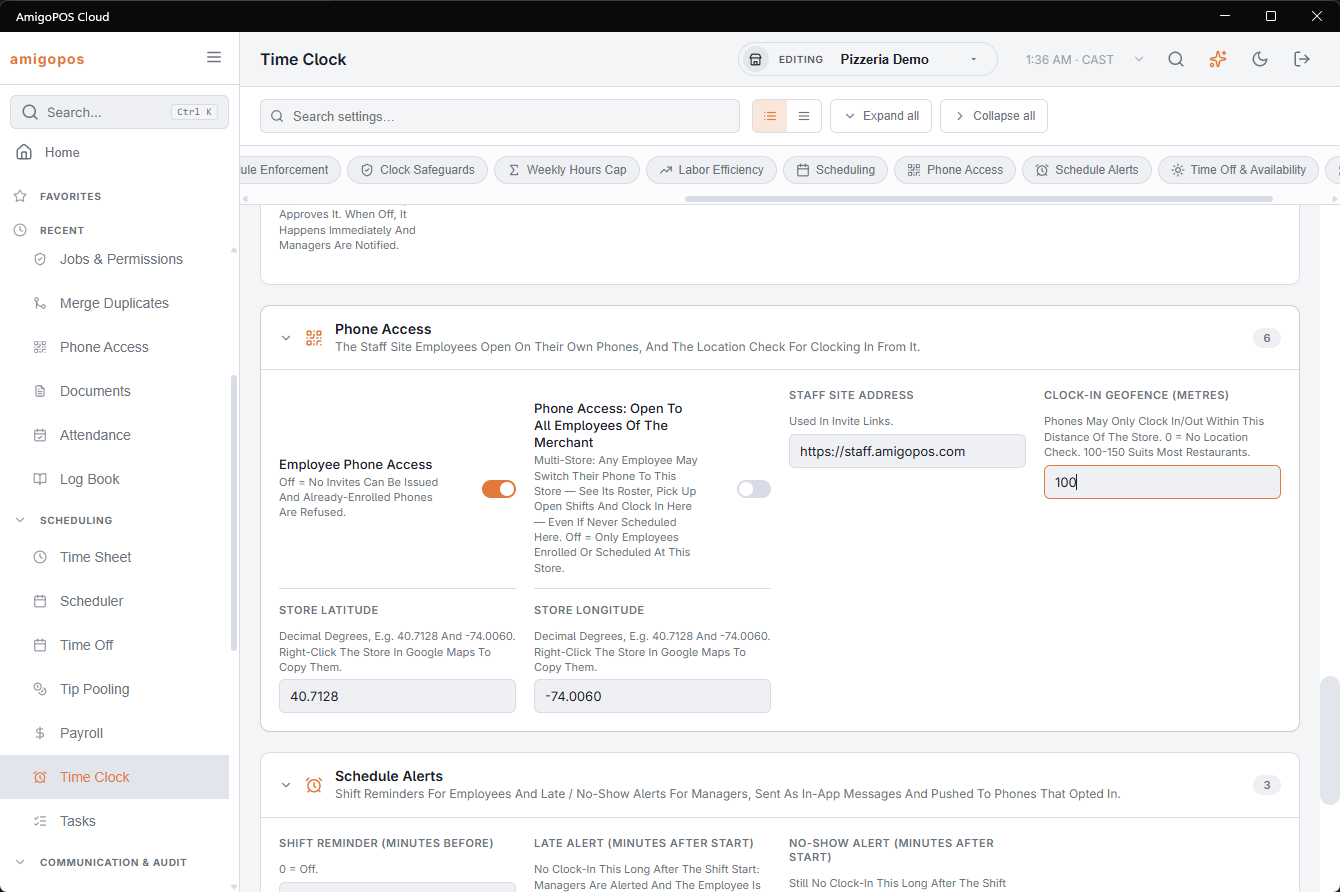
In Back Office › Employees › Scheduling › Time Clock, section Phone Access (see Time Clock settings):
- Employee Phone Access — on. While it is off no invites can be issued, and every phone already set up is refused.
- Staff Site Address — the address that goes into invite links. Leave the default unless you have been told otherwise.
- The location check fields, below.
The list
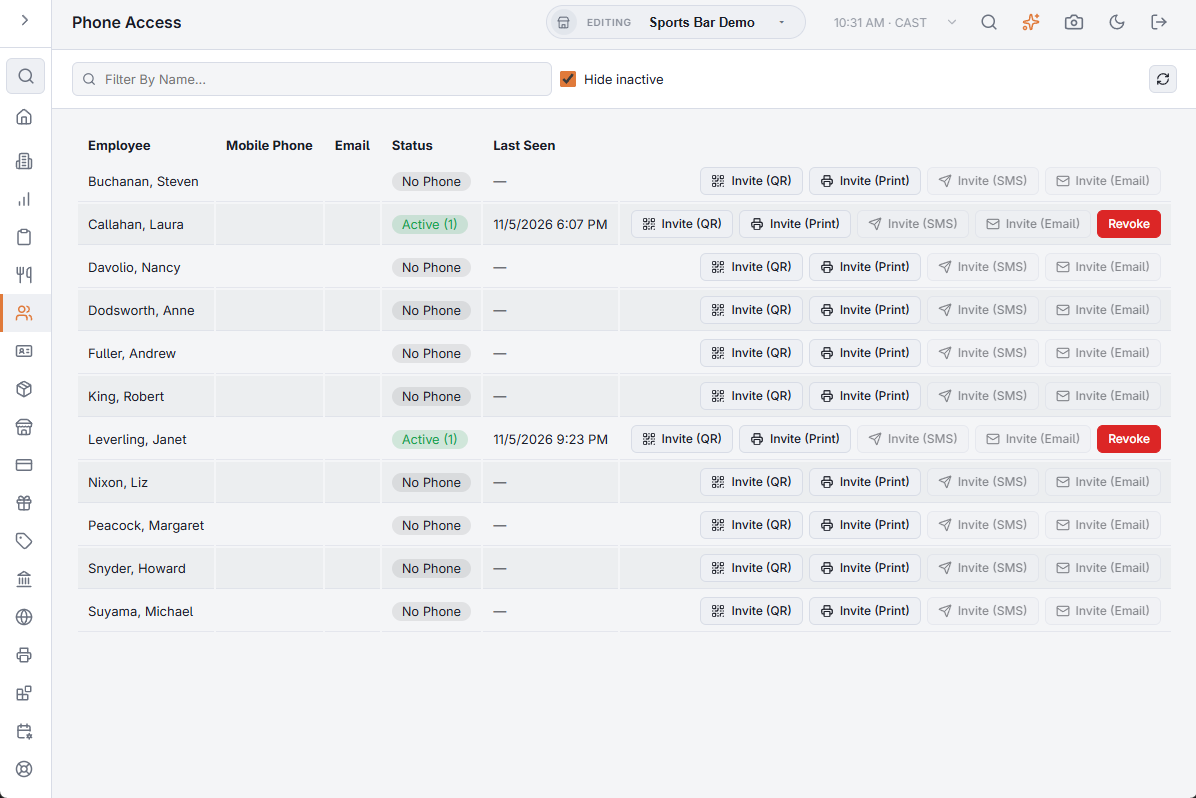
Every employee is listed with their Mobile Phone, Email, Status and Last Seen — when one of their phones last connected. Filter By Name... finds a person; Hide inactive, on when the page opens, leaves out inactive and released employees.
Inviting an employee
- Invite (QR) — shows a QR code and a link on screen. The employee scans it with the phone’s camera, or opens the link on the phone. It costs nothing and is the quickest way when they are standing in front of you.
- Invite (Print) — prints the invite slip with its QR code at this station’s receipt printer, to hand to the employee.
- Invite (SMS) — texts the link to the employee’s mobile number. Each text is charged; staff invites have their own switch, Employee Phone Access Invites, on Back Office › Integrations › SMS; see SMS settings.
- Invite (Email) — emails the link and the QR code to the employee’s address.
The SMS and email buttons need a mobile number or an email address on the employee’s profile. Inactive and released employees have no invite buttons.
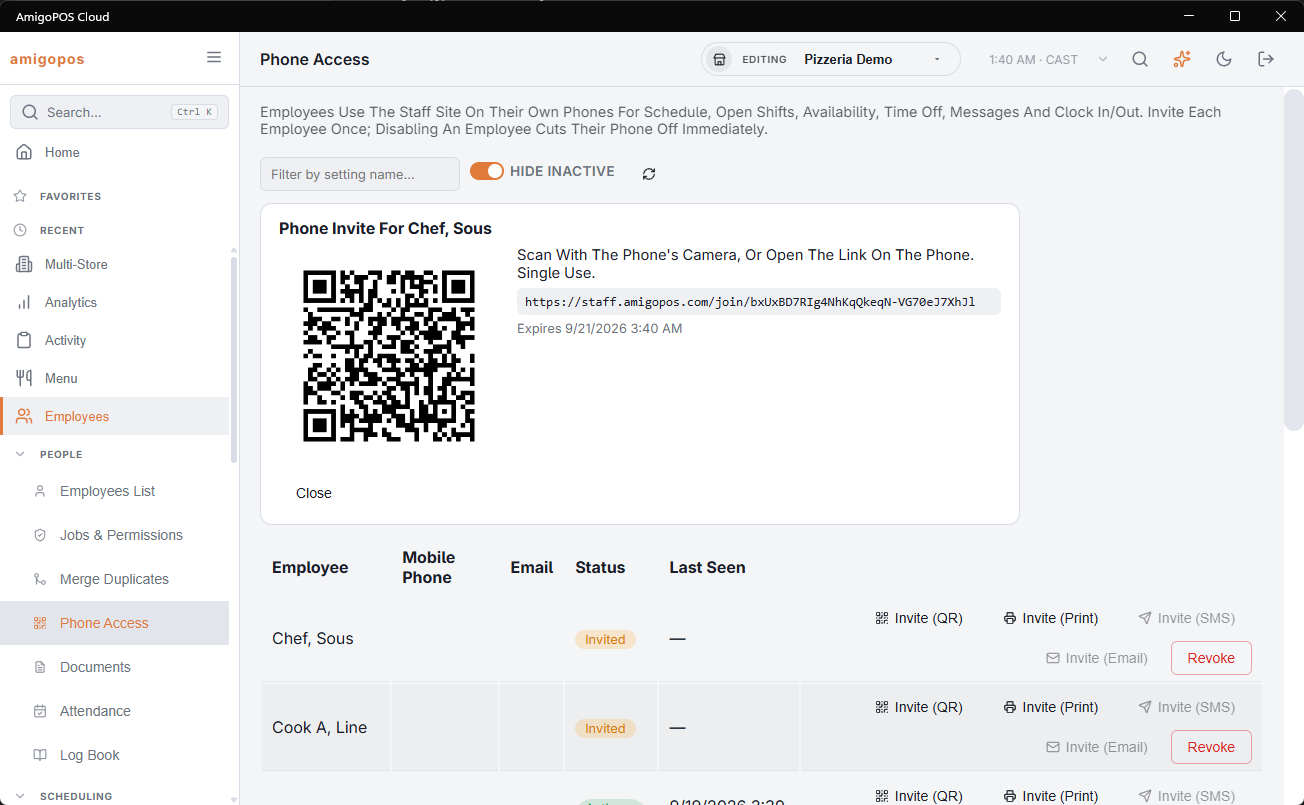
The invite panel shows the QR code, the link and when it expires: an invite works once and expires after 48 hours, and sending a new one cancels the old. Opening it sets up that phone, and from then on the employee signs in with their usual PIN. Close hides the panel.
Status
- No Phone — never set up, or everything was removed.
- Invited — an invite is waiting to be opened.
- Active (n) — the number of phones in use. Each employee can have two; setting up a third signs out the one used least recently.
- Revoked — access was removed. An invite cancelled because a newer one was sent does not count as revoked.
When someone leaves
Marking an employee Inactive or Released on their profile cuts their phone off the next time it connects — there is nothing else to remember. Revoke on this page is for everything else: a lost or replaced phone, or ending phone access for someone who is staying. After you confirm, it removes every phone and any open invite at once, and the page shows Phone Access Revoked., or Save failed if it did not work.
Location check for clock-in
- Clock-In Geofence (Metres) — how close to the store a phone must be to clock in or out. 0 turns the check off; 100–150 suits most restaurants.
- Store Latitude and Store Longitude — in decimal degrees, for example 40.7128 and -74.0060. In Google Maps, right-click the store’s entrance and click the coordinates to copy them.
Phone punches follow the same time-clock rules as the register. Anything that needs a manager override — clocking in outside the schedule when the schedule is enforced, for example — can’t be done from a phone; the employee is told to use the register.
Staff who work at more than one store
Employees belong to the business, not to one location, so one invite is enough for someone who works at two. Their phone shows a store picker once there is a second store they may look at, and everything — roster, open shifts, tasks, clocking in — follows the store they pick. A store is on their list when they have been scheduled there in the last three months, or when Phone Access: Open To All Employees Of The Merchant is switched on for that store (Time Clock settings, Phone Access section). Scheduling someone at a second store is usually all it takes; the switch is for groups that pool staff freely.
What else is set on the Time Clock page
- Schedule Alerts — shift reminders and late / no-show alerts, and the notifications that carry them to phones; see Phone notifications and schedule alerts.
- Time Off & Availability — whether availability changes need approving, and the paid-time-off allowance.
- Document Expiry Alert (Days Before) — how far ahead expiring documents are flagged; see Employee documents and certificates.
Managers on their phones
Anyone with a job that has manager access gets the roster, approvals, announcements, the log book, alerts and the day’s numbers (Today) on their own phone — see Manager tools on the staff site. Nothing extra to switch on: it follows the job. Managers can also close a forgotten clock-out and approve punches from their phones — see Fixing punches from your phone (managers).
Face ID, calendar links and breaks
- Face ID / fingerprint unlock and the calendar link need nothing switched on: each employee turns them on for their own phone. Both stop with that phone’s access — Revoke, marking the employee Inactive or Released, or the phone signing out — and pause while Employee Phone Access is switched off. See Unlocking with Face ID or fingerprint and Your shifts in your phone’s calendar.
- Face ID and fingerprint unlock is tied to the Staff Site Address. Change that address and everyone who uses it has to turn it on again.
- Breaks on the phone follow the Breaks section of the Time Clock page: with Enable Breaks off, the phone shows no Start Break button (a break already running can still be ended).
What employees can change themselves
- Mobile Phone, Email and Language — under More › My Profile on their phone. The change shows on their profile in Back Office and is what the invite buttons use. See My Profile: your phone number, email, language and PIN.
- Their PIN — with the current PIN, by the register’s rules; wrong guesses count toward the phone’s five-try lock.
- Lock When Away — how soon the phone asks for the PIN again after being put away: 15 minutes unless they change it, on each phone. The 12-hour limit still applies. See This Phone: notifications, Face ID, Lock When Away and appearance.
Employees can also write to the managers from their phones (Message The Managers), and managers can answer a register’s override request from theirs; see Asking a manager’s phone for an override.