A manager holds the staff site like everybody else — same invite, same PIN — and sees a few things nobody else does. The test is the job: anyone with a job that has manager access (Allow Manager in Jobs & Permissions) gets them, on every job they hold, whether or not they are clocked in. The server checks it on every request, so a phone cannot talk its way in.
Where the manager tools are
They are all in one place: the Manager group on the More tab — Today, Approvals, Manager Alerts, Override Requests, Time Punches, Dispatch, Announce, Log Book and What’s New. A row shows a count when something is waiting there, and the More tab carries the total of approvals, alerts and deliveries needing attention.
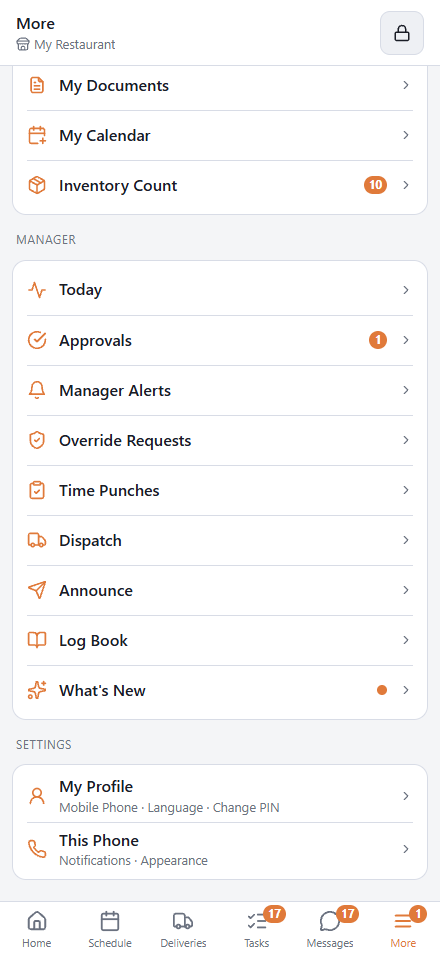
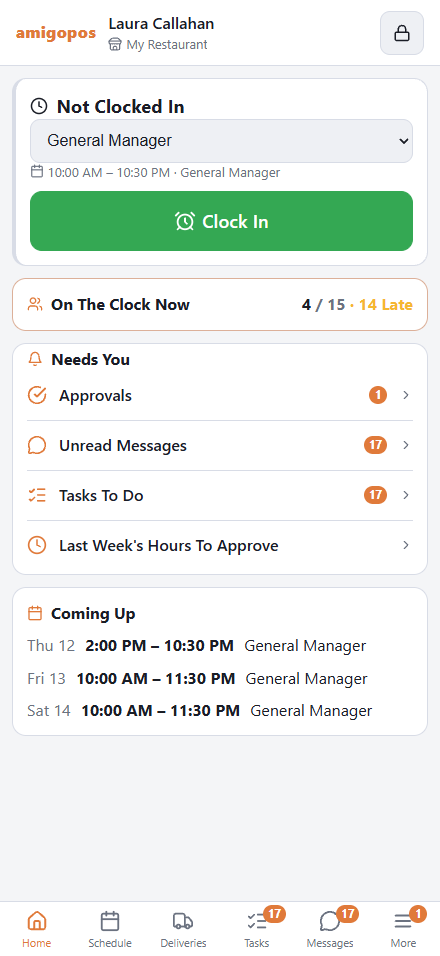
Home helps too. On The Clock Now shows how many are clocked in against how many are scheduled, and how many are late; tap it for the roster. Under Needs You, Manager Alerts, Approvals and Dispatch appear whenever they hold something.
Team
Schedule › Team is the roster, grouped by job, with the day arrows at the top for yesterday and tomorrow. Each person shows their shift times and where they stand:
- Upcoming — scheduled, not due yet.
- On Shift — clocked in.
- Late — more than ten minutes past the start with no punch.
- No Show — the shift ended and they never clocked in.
- Done — worked and clocked out.
- Unscheduled — clocked in with no shift today.
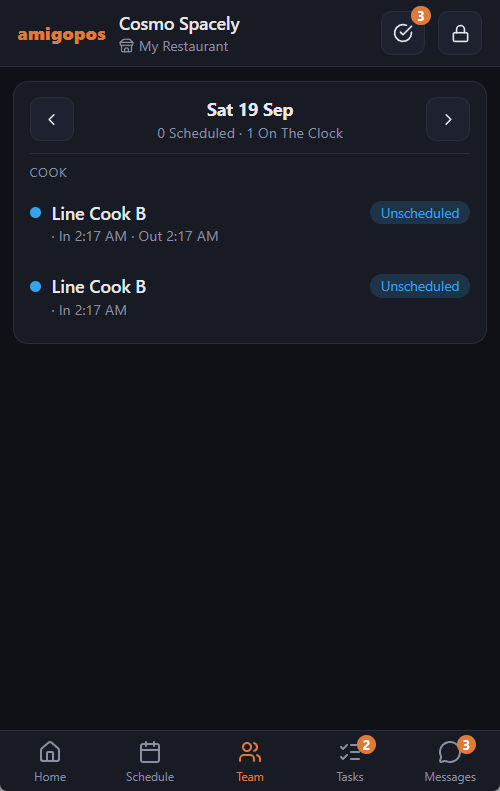
Names, jobs and times only — Team is for knowing who is on the floor. The day’s numbers live on Today, below.
Approvals
More › Approvals holds what is waiting for a decision:
- Shift changes — pick-ups and hand-overs when manager approval for shift changes is on.
- Time off — with the dates, whether the days are paid, and the employee’s balance after the request if balances are switched on.
- Availability changes — the employee’s current week beside what they are asking for, when availability needs approval.
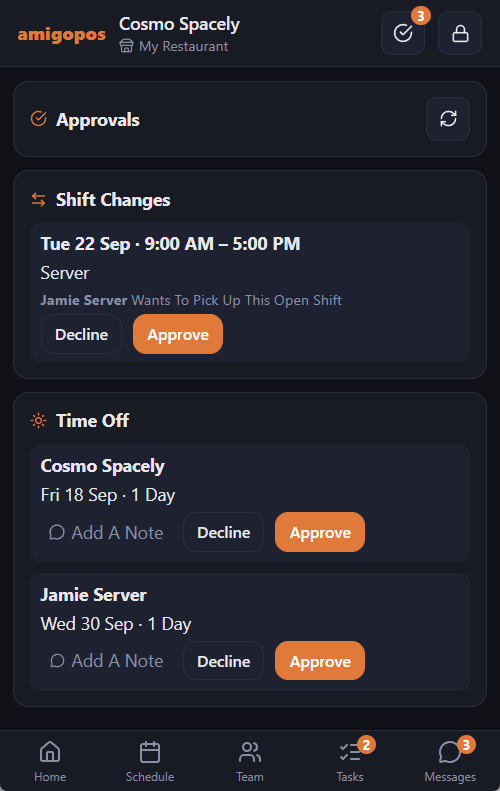
Approve or decline with an optional note. The employee is told in Messages either way, and the same items are waiting in Back Office — whoever gets there first decides it.
Override requests
When someone at a register needs a manager override and taps Ask A Manager’s Phone, the managers who could approve it are notified. More › Override Requests lists what is waiting at the store your phone is looking at, with Approve and Decline. A request waits two minutes. See Asking a manager’s phone for an override.
Announce
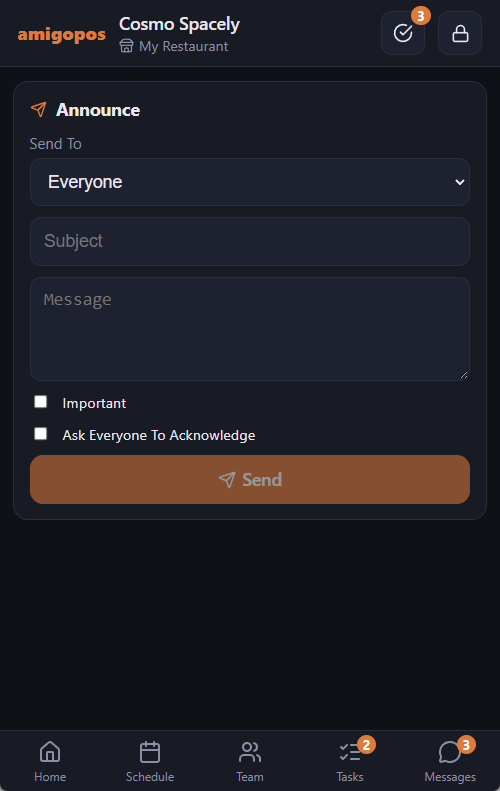
Announce sends a message to everyone, to today’s roster, to whoever is clocked in, or to one job. Mark it Important to push it to the top of their Messages, or Require acknowledgement to get an Acknowledge button and know who has read it. Announcements reach phones and registers alike, and go out as push notifications where those are switched on.
Employees can write to you as well: Message The Managers on their Messages tab reaches every manager, and whoever answers first answers in that conversation. See Messages.
Log Book
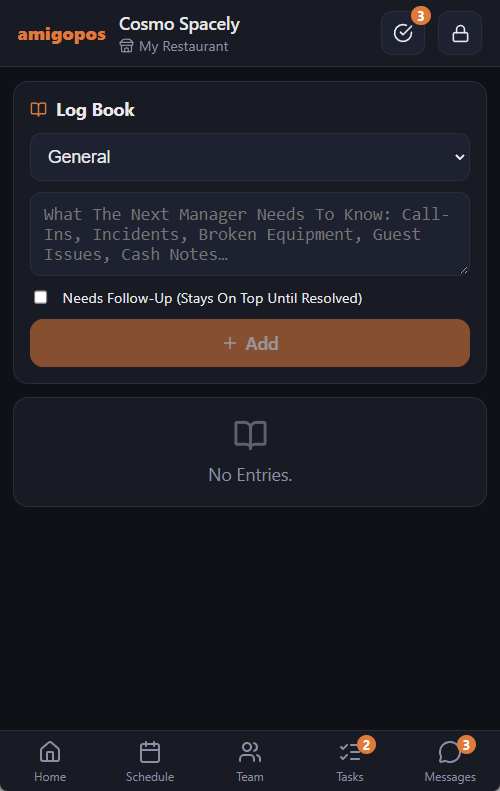
More › Log Book holds the shift hand-over notes — see Manager log book.
Alerts
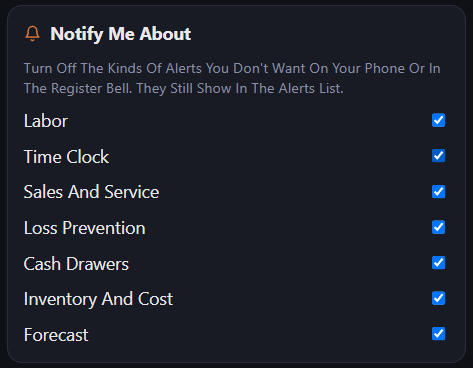
More › Manager Alerts is the list of open manager alerts — labor, sales, losses and stock, each with a suggested fix — where you acknowledge or snooze them and choose which kinds you are notified about. See Getting and handling alerts.
Today
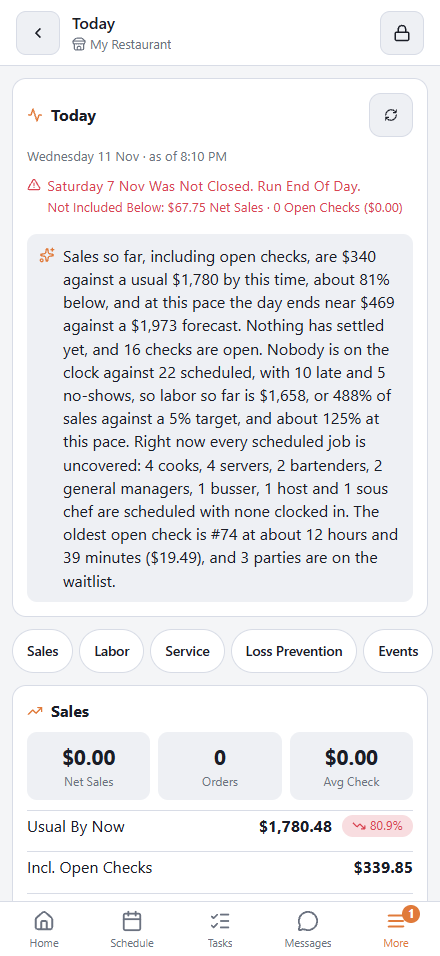
More › Today is the manager’s page for the business day so far: sales against what is usual by this time and where the day is heading, labor against its target, open checks, deliveries and bookings, voids and discounts against normal, what may run out, the open alerts and the day’s events, with a short written briefing on top. See Today: the manager’s day on their phone.
Fixing punches
Under each person still on the clock, Team has Clock Out, for the punch someone forgot to close. More › Time Punches opens the week’s punches with the Timesheets labels, to approve one by one or with Approve All Shown. Neither works on your own punches. See Fixing punches from your phone (managers).
Task lists
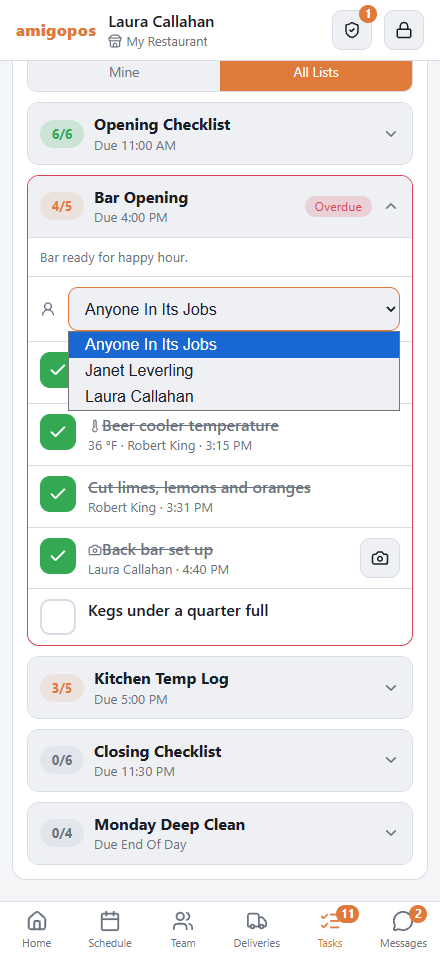
On the Tasks tab, All Lists shows every list due today at the store, not only yours. Open a list to give it to one person for the day — pick from today’s team, or Anyone In Its Jobs to put it back — and to see the photos taken for it. See Task lists (checklists).
Dispatch
At a store that delivers its own orders, managers also get More › Dispatch: the delivery board on the phone. See Dispatching from a manager's phone.
Inventory counts
Managers can start a team inventory count from More › Inventory Count, and when the shelves are done, tap Review & Post to see every difference and its value, then Post Count to apply it to stock or Discard Count to close it without changes. See Counting inventory as a team on your phones.
What’s New
More › What’s New lists what changed in each update. A dot on the row and on the More tab means there is something you have not read.
What is deliberately not on the phone: editing the schedule, editing punches (the phone only closes a forgotten clock-out and approves punches), pay rates and anyone’s individual pay, and employee records. Those belong on a proper screen with the history in front of you, in Back Office.