Back Office › Store Setup › Settle Screen sets up the register’s payment screen: the quick-cash amounts in the bar at the top, and three tabs. This topic is also the map of everything a cashier sees at settle, and where each piece is configured.
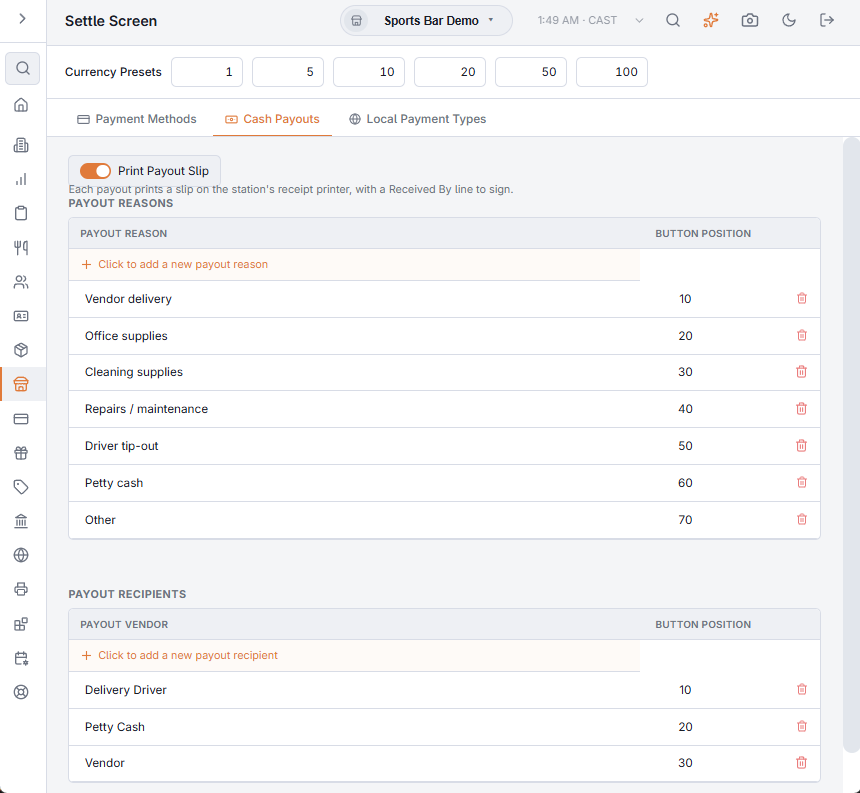
Currency Presets
The six boxes are the quick-cash buttons beside the numpad when a cashier takes cash (see Cash payments and change due). A box saves when you leave it, and a tick confirms the save.
- Whole amounts only, shown on the buttons in the order of the boxes.
- 0 leaves that button out. With all six at 0, the buttons are 1, 5, 10, 20, 50 and 100.
- A cash method in another currency uses the same figures in its own currency.
The tabs
- Payment Methods — Open Payment Methods takes you to Back Office › Payments › Payment Methods, where the methods are set up. See Payment methods.
- Cash Payouts — the Payout Reasons and Payout Recipients offered when cash is paid out of a drawer. See Cash paid-out and reasons.
- Local Payment Types — which payment methods the payment screen shows on this station. See Local payment types.
The Cash Discount that used to be on this page applies only to cash that employees bank, so it is now on Store Setup › Employee Banking Settings. See Employee Banking Settings.
What’s on the settle screen, and where it’s configured
- Payment buttons — one per enabled payment method, in their configured order with their icons → Payment methods.
- Quick-cash buttons → the Currency Presets above.
- Which methods this station shows → Local payment types.
- Card brand buttons for manual entry → Credit card types.
- Terminal selection for integrated card payments → Payment terminals.
- Surcharges and tax display → Surcharges and tax on the settle screen.
- Split controls → Split by item and the other splitting topics.
If a button is missing at settle, work backwards: is the method enabled and available for tender, is it switched off for this station under Local Payment Types, is it available for this channel (store vs. call center/web), and does the station have the needed hardware selected?
What the cashier sees and does — tendering, change, receipts — is in The settle screen explained.