The AI Assistant is a built-in helper you talk to in plain language. Instead of hunting through Back Office screens, you describe what you want — "raise all drink prices by a dollar", "how much should be in the bar drawer?", "what do I need to order this week?" — and the assistant looks up the real data, shows you exactly what will change, and applies it only after you confirm.
Opening the assistant
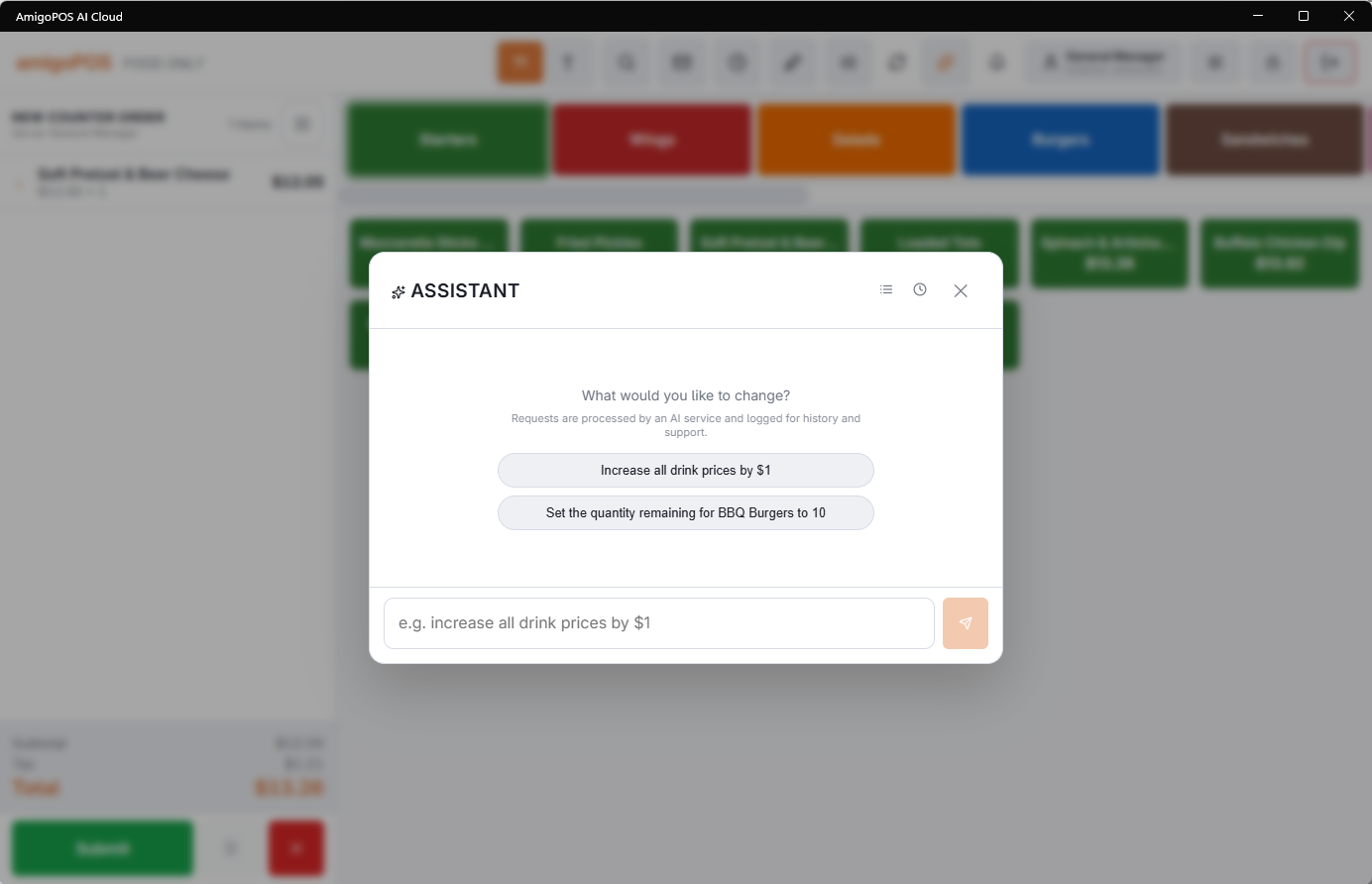
Tap the Assistant icon in the top bar. The overlay opens over whatever you are doing, and closing it never disturbs the order on screen. Each time you open it you start a fresh conversation.
What it can work with
- Menu — look up items and categories, adjust prices, set quantity-remaining counters, rename items, and create new categories, menu items, modifier groups, bar modifiers, and bar qualifiers (see Creating menu content with the assistant).
- Cash drawers — list drawers, check the live expected cash, review recent counts and over/short results, move or rename drawers, set count and drop thresholds, and free up a stuck drawer.
- Employees — create employees, assign jobs, change PINs, enable or disable accounts, and check who is clocked in.
- Demand forecast — how busy the coming days will be, what to prep tomorrow, how reliable the forecast has been, and any demand alerts.
- Inventory and purchasing — how much of each ingredient you will need for the coming days, what is on hand, what to order and roughly what it will cost, plus recipes with plate cost and actual ingredient usage (see Inventory and purchasing questions).
- The app itself — ask where a setting lives ("where do I turn on user drawer assignment?") and the assistant answers with the location and shows the matching help articles as tappable cards.
- The market — ask how your prices compare locally and it will check competitor menus on the web, with appropriate caveats about how fresh online prices are.
Under every answer
Each reply has two small actions beneath it: Copy puts the answer on the clipboard, and Schedule turns the question into a recurring email — daily, weekly, monthly, or at End of Day — so the morning order list or the weekend prep forecast shows up in your inbox without opening the app (see Scheduling a question by email).
What it deliberately does not do
The assistant only sees the areas listed above, only offers actions your PIN's permission group allows, and never applies a change without showing you a preview first. It cannot take payments, edit open orders, or touch anything outside your store.
On the register
The assistant also works the order in front of you: add menu or misc items with prep instructions, repeat a round, print receipts, void with a reason, and settle cash — see Working the register by voice or text. And it navigates: “clock out”, “no sale”, or “open Riley Server” in Back Office opens the right screen or editor directly — see Opening screens and records. Replies can be read aloud with Voice replies.
More the assistant can do
- Guests — reservations that might not show, regulars who stopped coming, what sells together: Guests: reservations, regulars and upselling.
- Allergen questions (always to be verified) and what a price change would do: Allergen and price questions.
- Who is heading into overtime this week: Overtime questions.
- What might run out today, and drafting purchase orders: Inventory and purchasing questions.
Every change the assistant makes is recorded in The AI change log, and all AI use counts toward the monthly allowance: AI usage, limits and your monthly allowance.
Quick actions
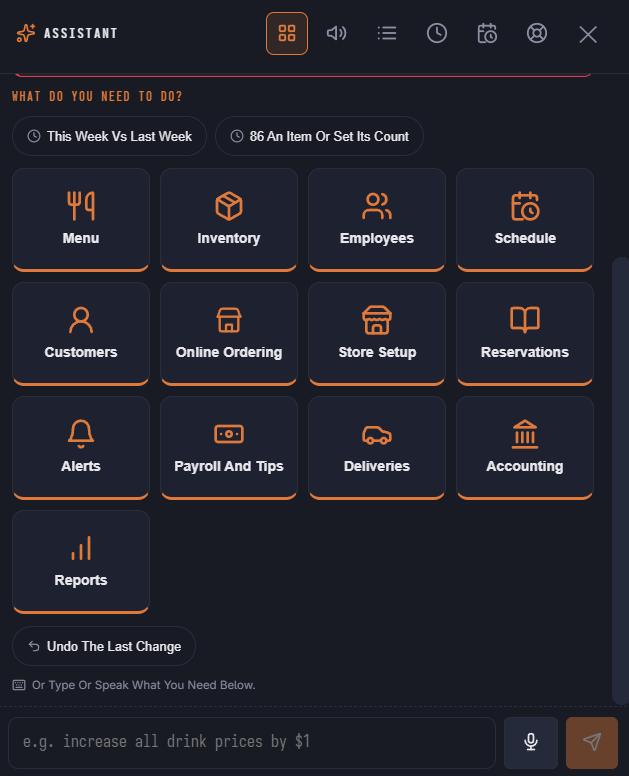
The assistant now opens on the quick-actions launcher: tap an area and an action, fill in a short form and press OK — no typing, and no AI allowance used. The top of it shows what needs attention at the store. Typing or speaking a request in the box below works as before. See Quick actions: done in a few taps.
More things the assistant can do
The assistant also handles deliveries and drivers, guest surveys and offers, manager alerts, payroll and tips, the kitchen display and devices, Uber Eats, QuickBooks and Xero and pool tables and table time. Each appears only where the store uses it and your job allows it.